> For the complete documentation index, see [llms.txt](https://docs.otherside.xyz/llms.txt). Markdown versions of documentation pages are available by appending `.md` to page URLs; this page is available as [Markdown](https://docs.otherside.xyz/odk-docs/characters/creating-a-custom-character/creating-a-simple-avatar-collection/further-testing.md).
# Further Testing
It is a good idea to test how your avatar is going to work in the Otherside by setting up a small test scene to preview some animations.
In order to do this we are going to:
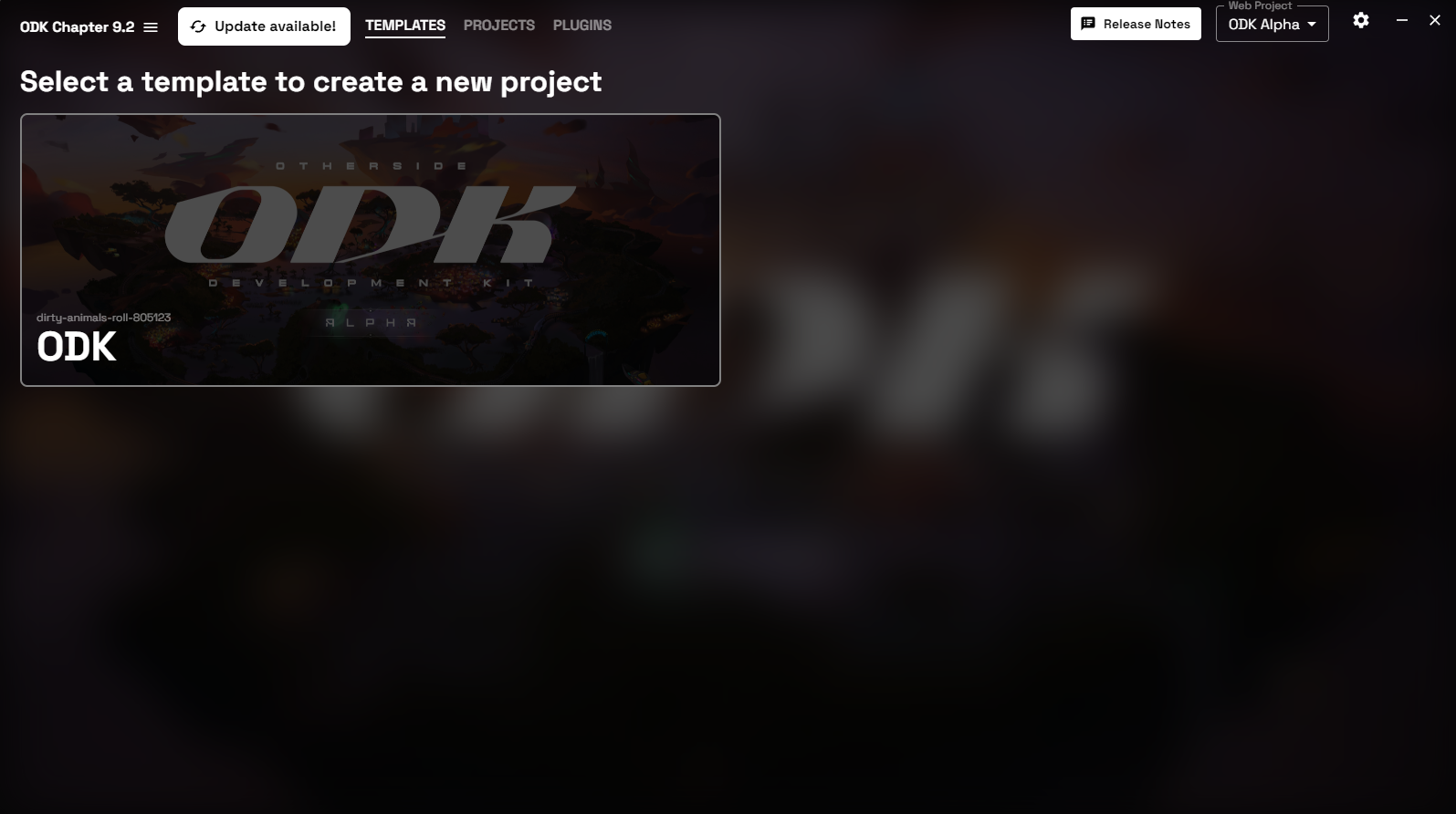
* Create a new ODK project
* Create a new blueprint that will
* Load a GLB into the ODK at runtime
* Apply animations
Let's start by creating a new project. Start the ODK Launcher and make sure you are on the `Templates` Tab.
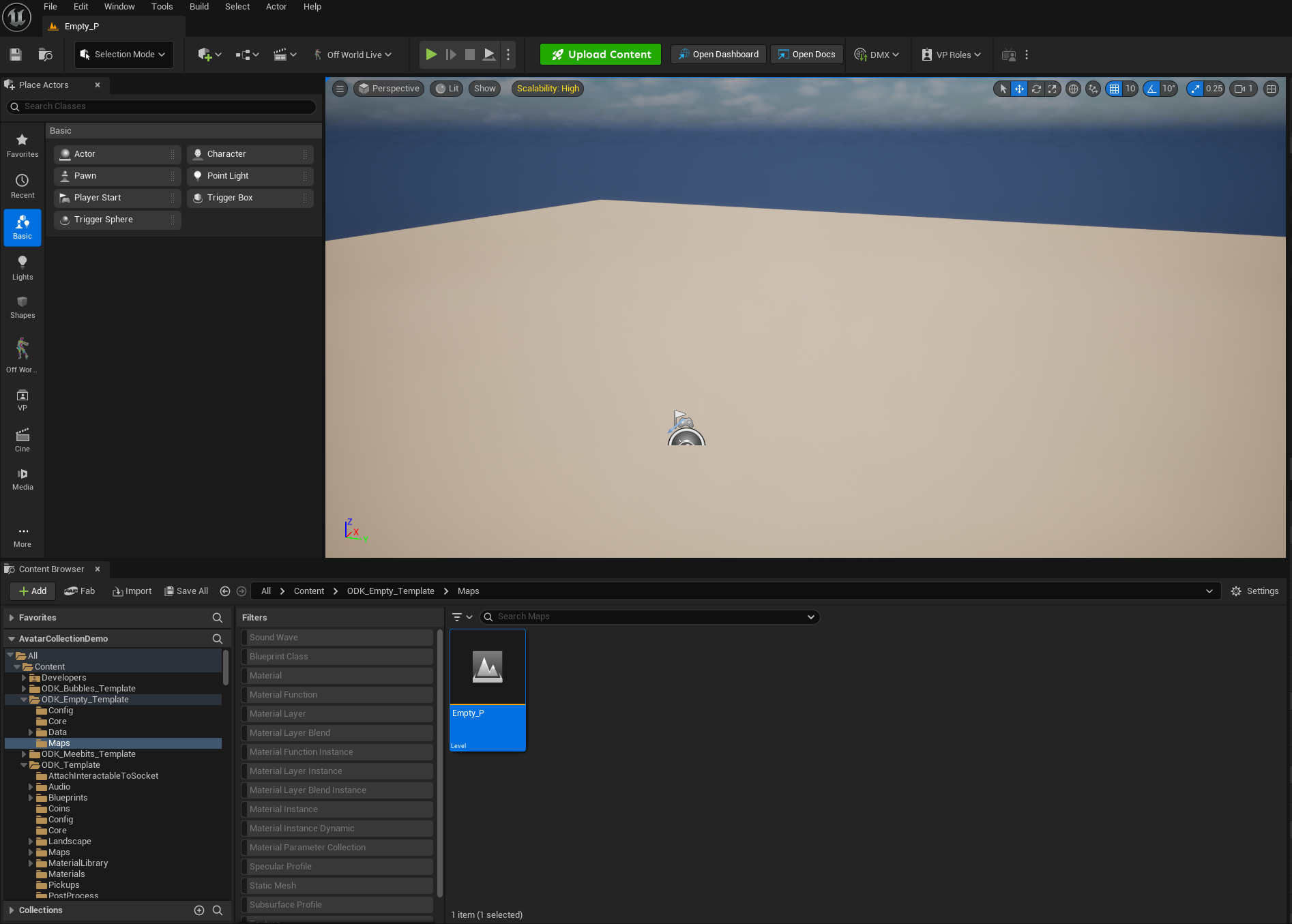
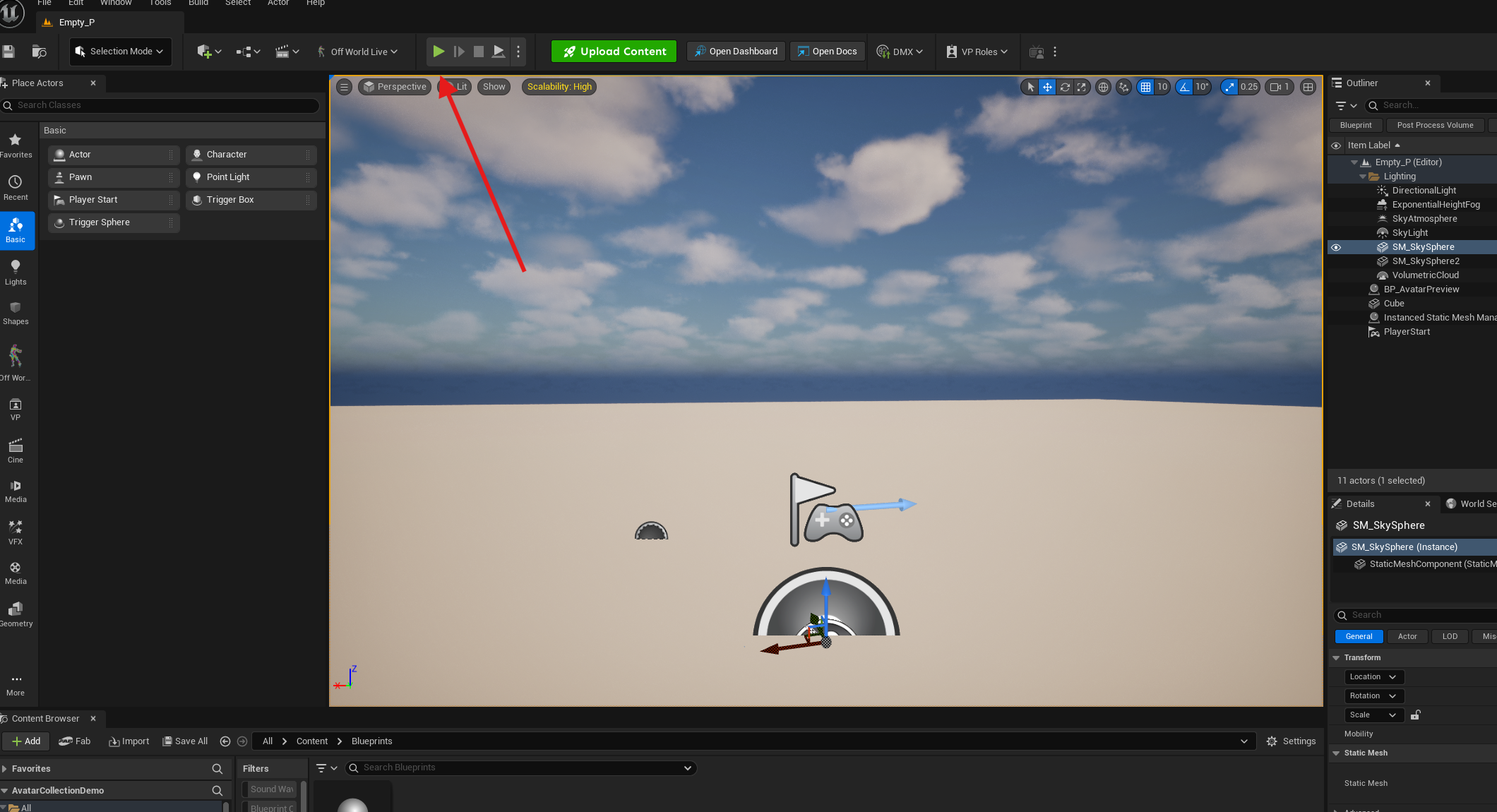
Once in the project use the Content Browser to navigate to the map called `Empty_P`, double click on the icon to open the map.
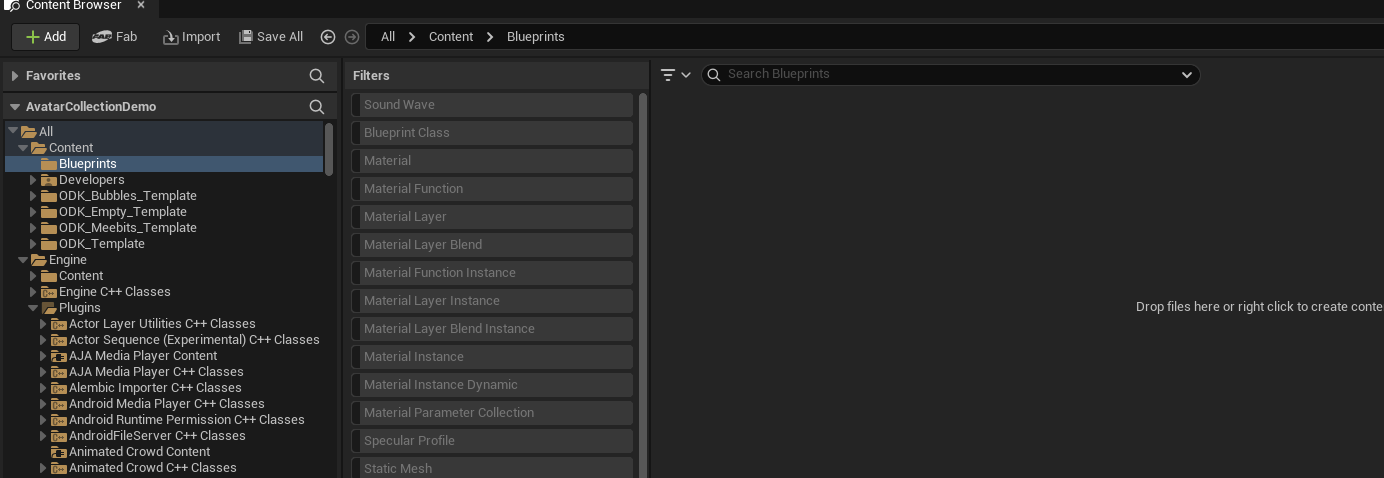
Create a new folder called `Blueprints` at the root of the content folder.
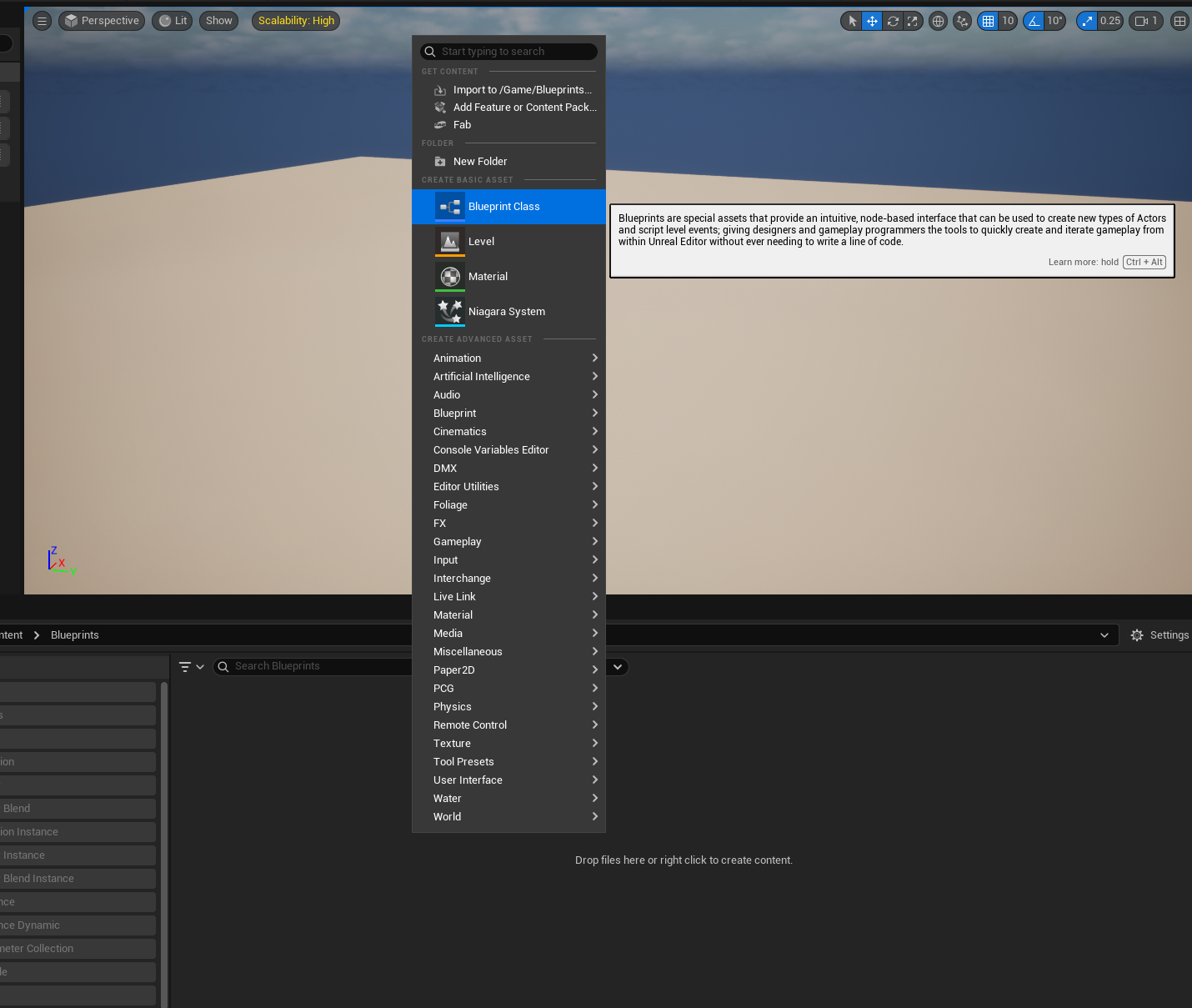
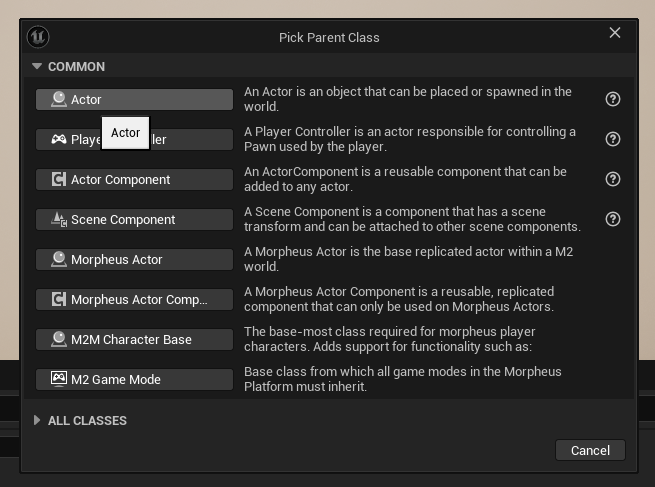
Right click in the empty window to and click `Blueprint Class`.
Select `Actor`
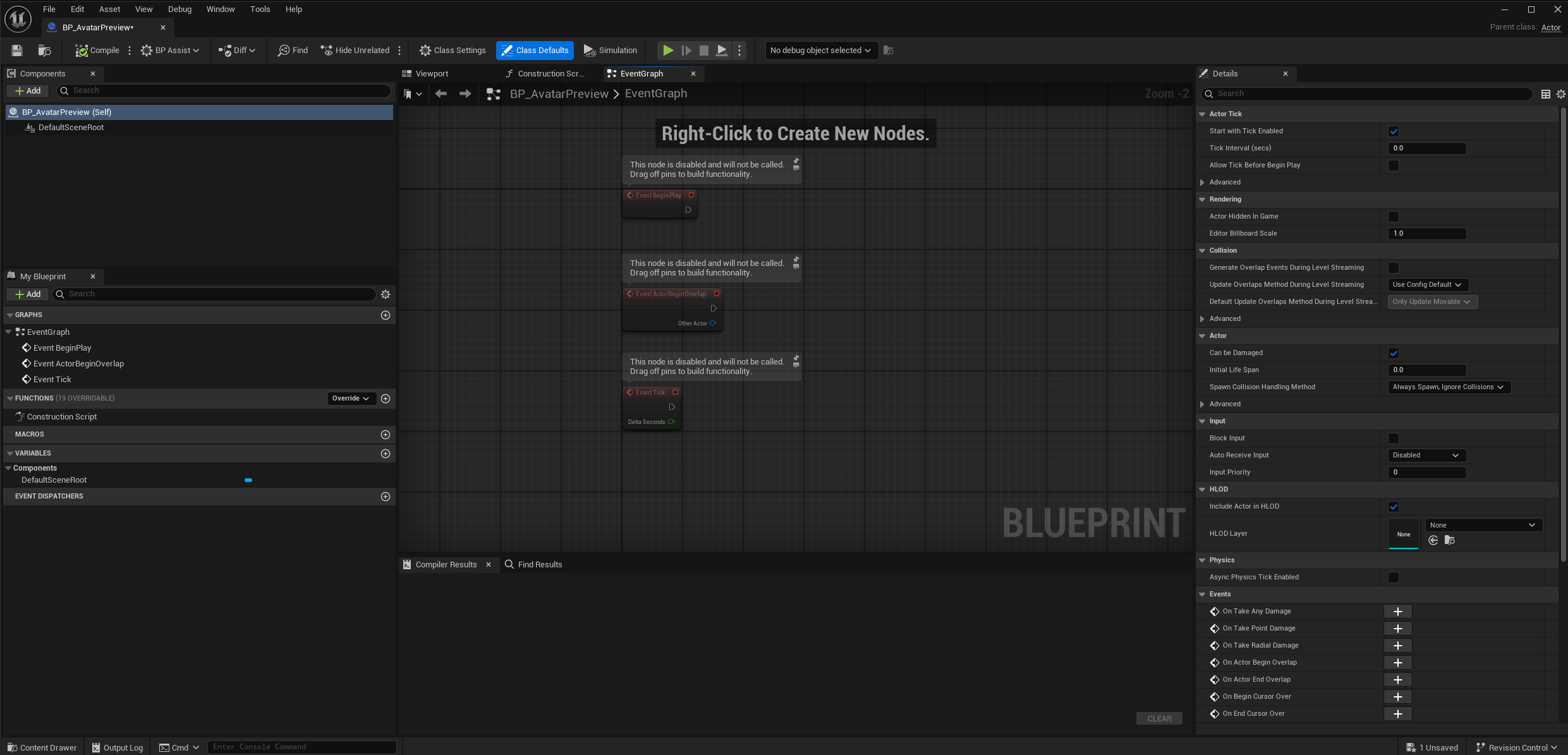
Name the blueprint `BP_AvatarPreview` and then double click on the blueprint icon to open up the editor. Once in the editor change the visible tab to `EventGraph`
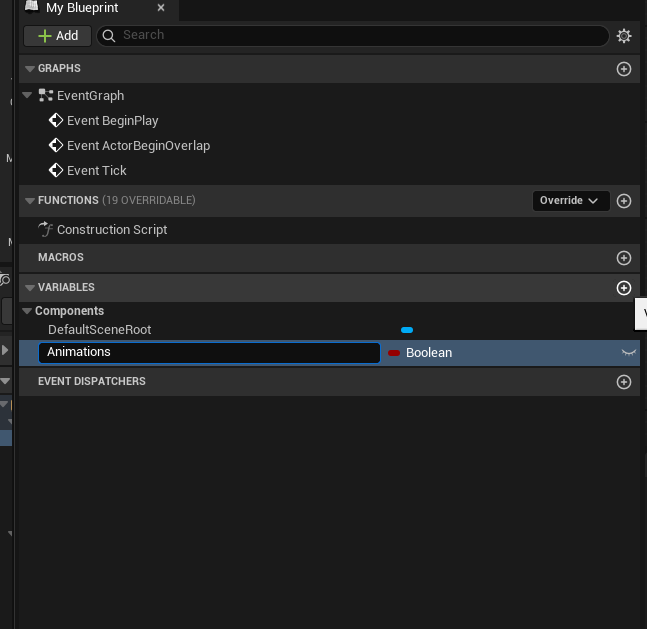
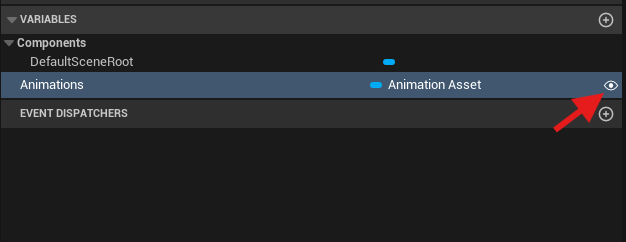
Press the `+` next to Variables to add a new variable called `Animations`
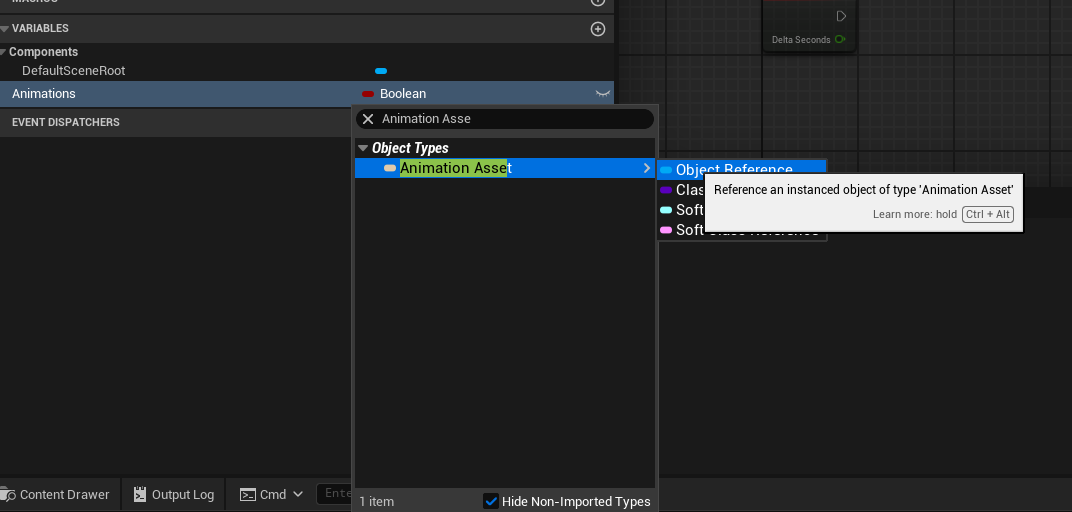
Change the type to `Animation Asset`
Make the variable public by toggling the eye next to it.
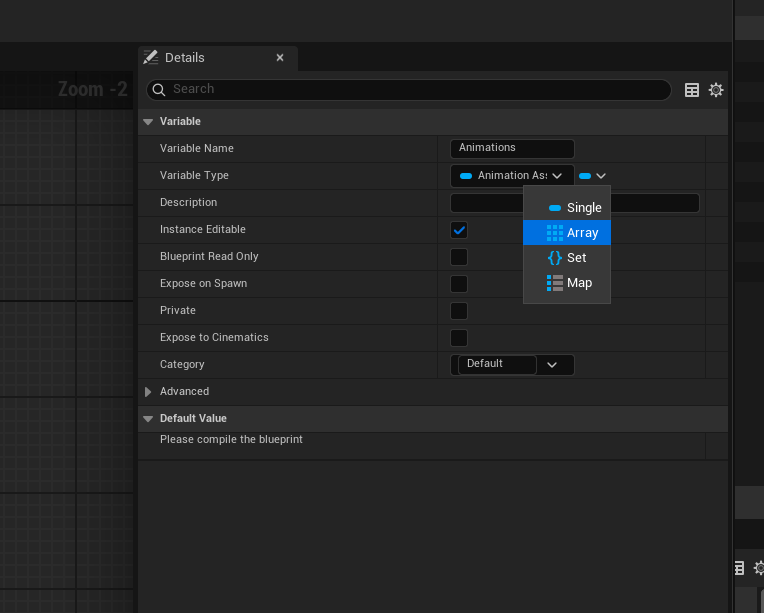
With the variable still selected in the details panel on the right update the variable type to be `Array`.
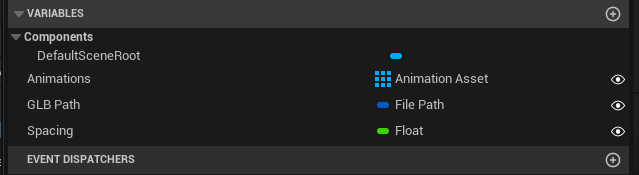
We are going to add two more variables:
* `GLB Path`
* Type - File Path - Single
* Public
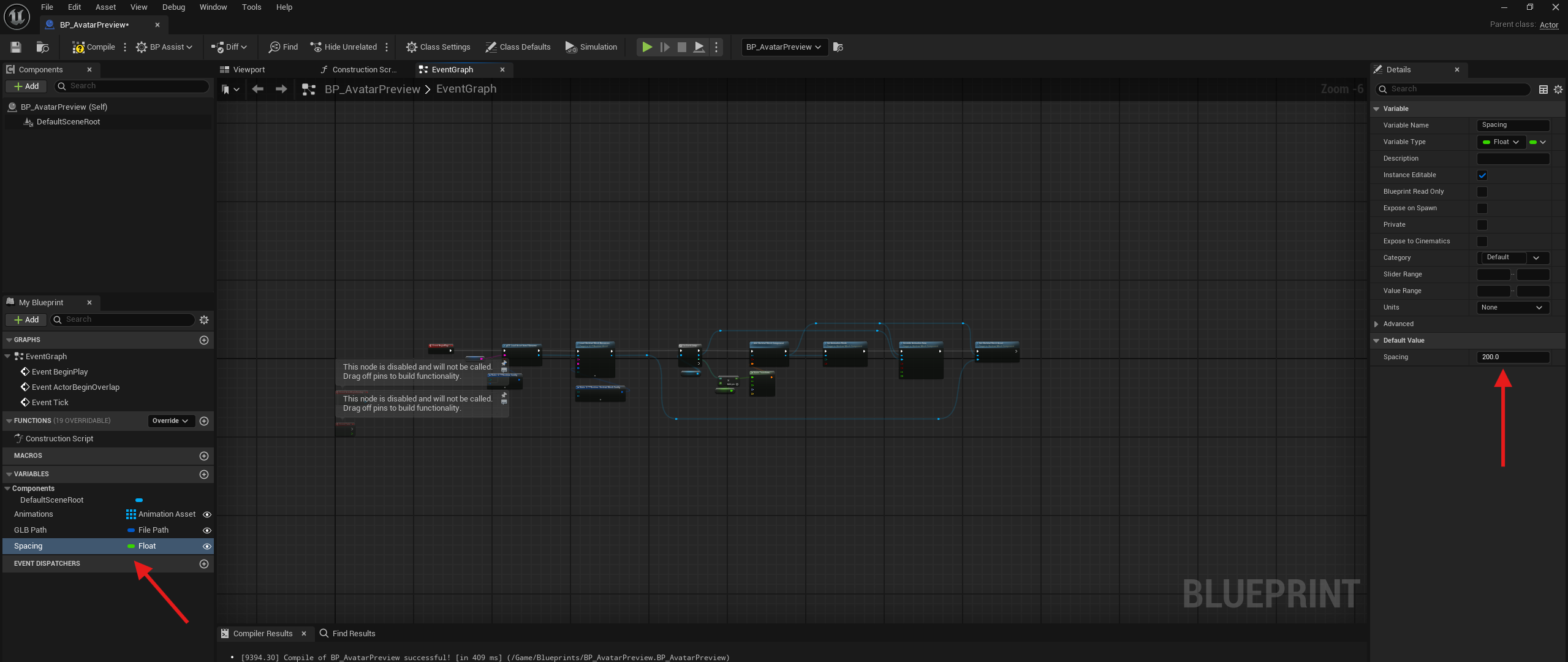
* `Spacing`
* Type - Float - Single
* Public The Variables section should now look like:
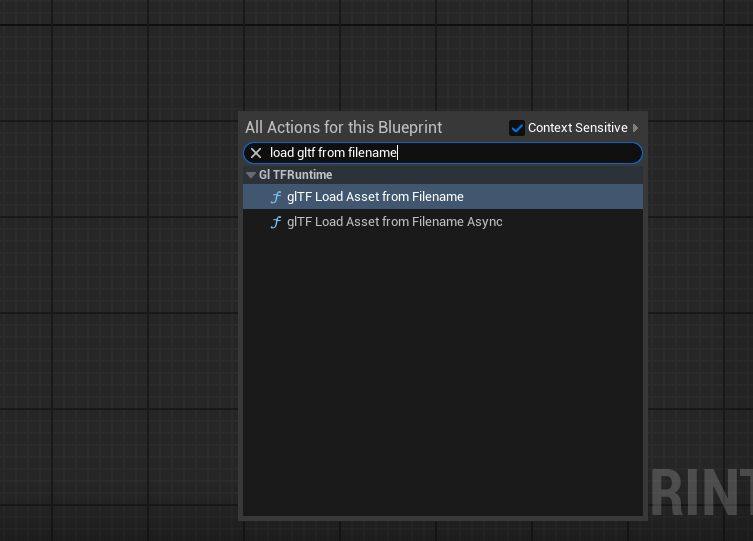
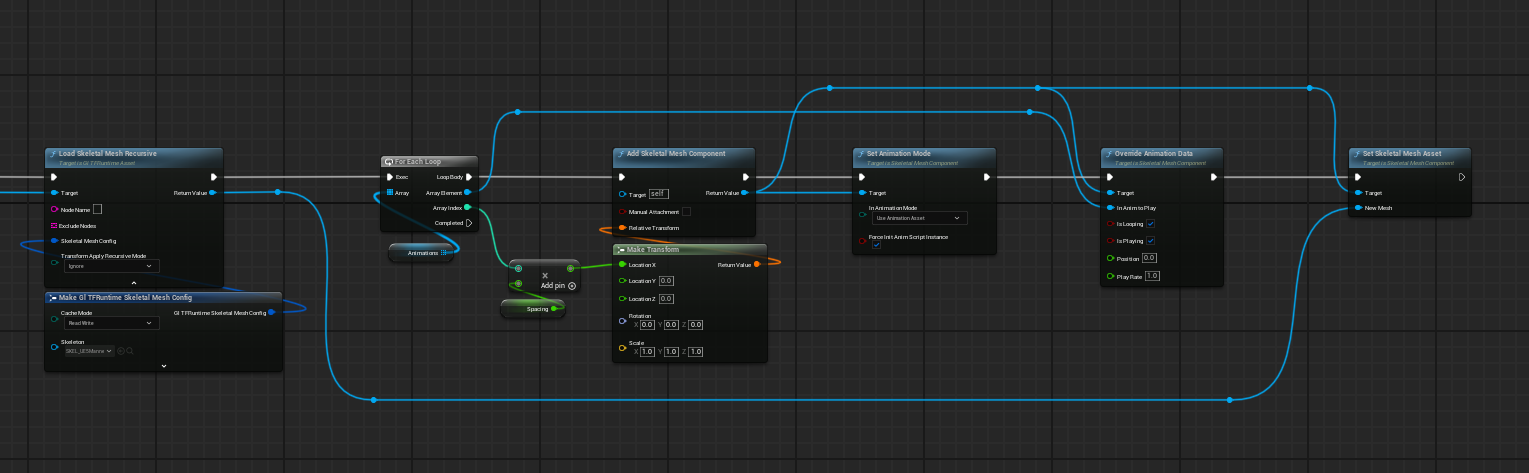
In the EventGraph press `tab` to add a node `glTF Load Asset from Filename`
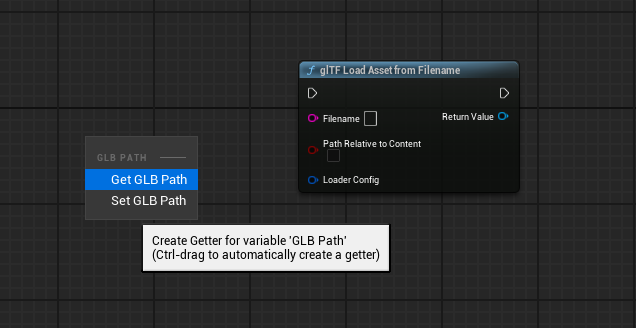
Drag and drop `GLB path` from the Variables panel into the Event Graph and select `Get GLB Path`
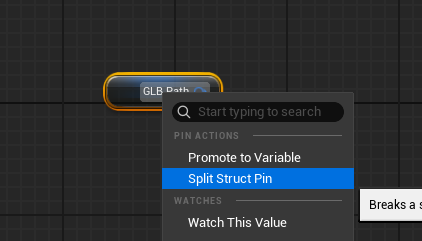
Right Click on the GLB Path pin and click `Split Struct Pin`
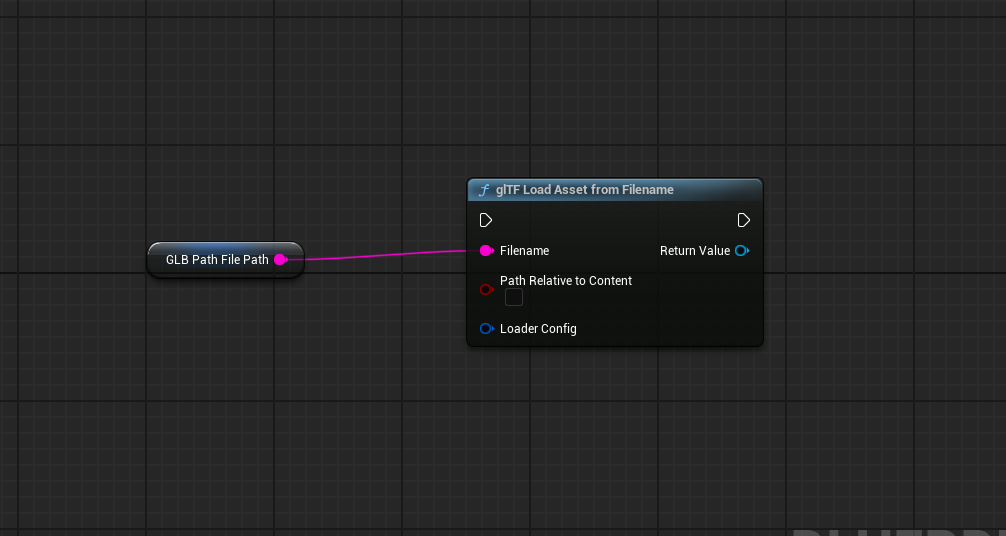
Now you can connect the pin on GLB Path to the file name on the Load Asset from Filename node.
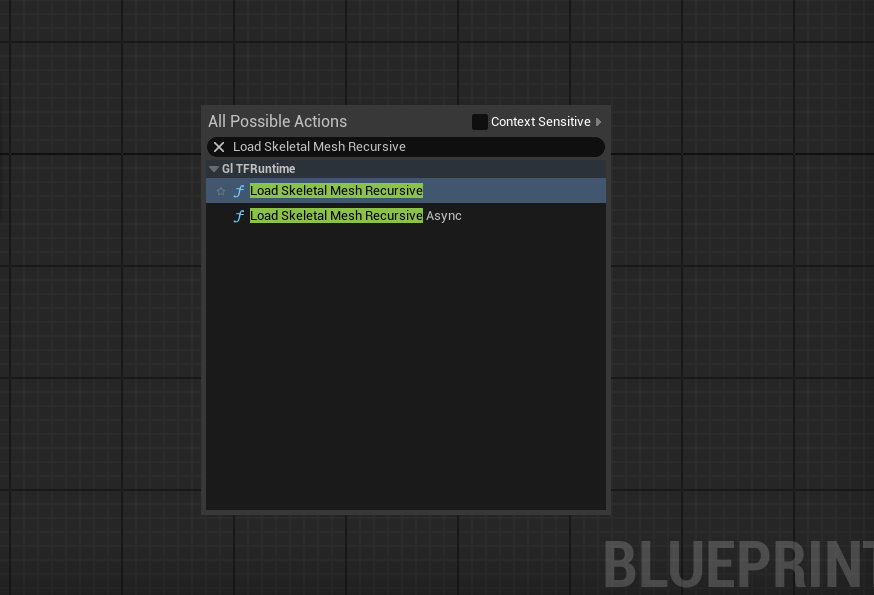
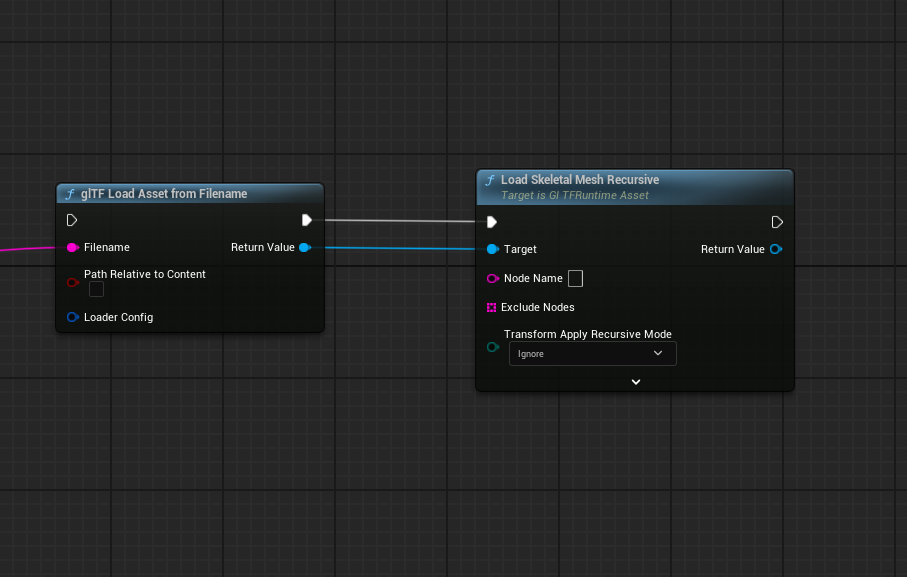
The next node we will be adding is the `Load Skeletal Mesh Recursive` node. You will have to uncheck the `Context Senstive` checkbox in the top right hand corner of the node search window to find it.
Connect the pins as shown in the images below to the Load Asset node.
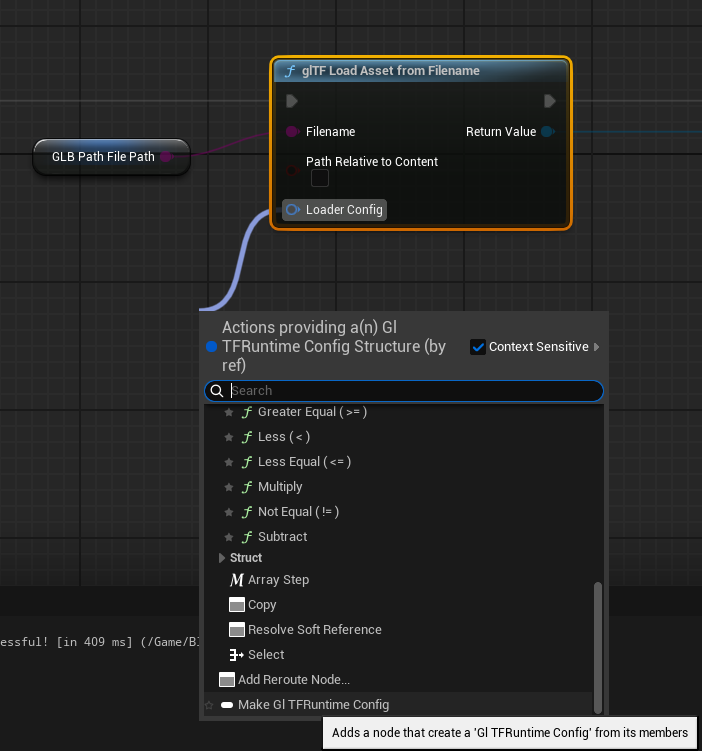
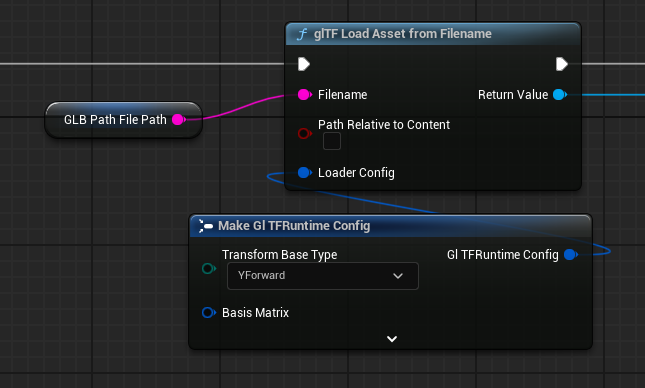
Pull a connection out from the `Loader Config` Pin on the `glTF Load Asset from Filename`. Reenable the `Context Sensitve` check box and scroll to the bottom and select `Make GlTFRuntime Config`.
In the dropdown for `Transform Base Type` choose `YForward`
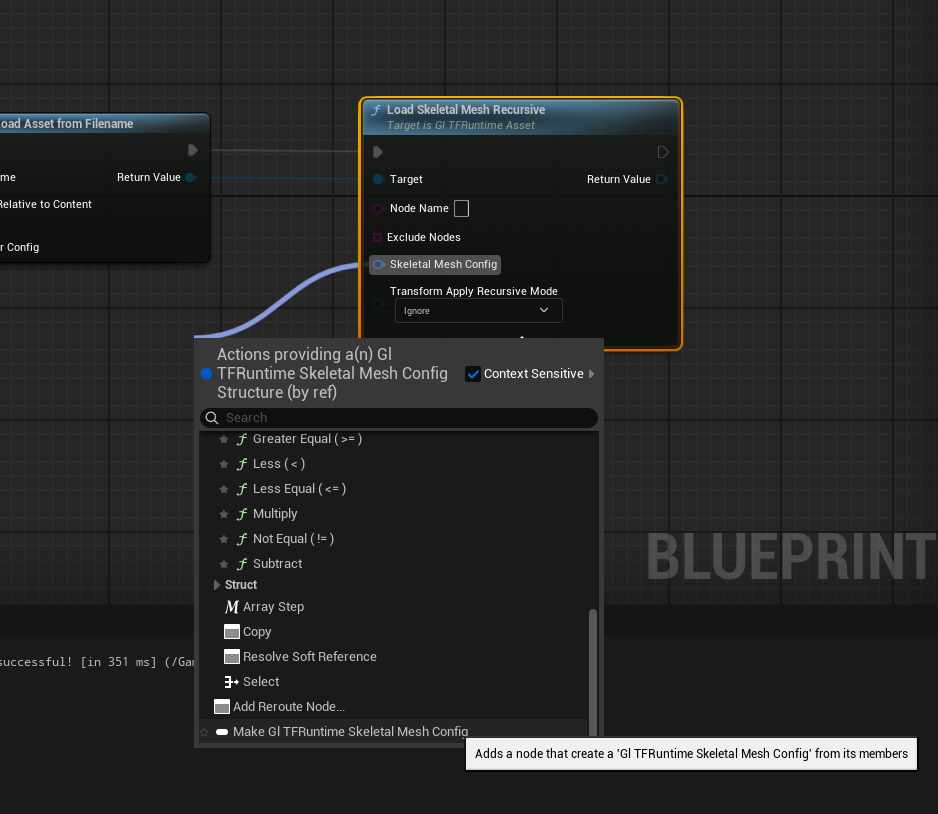
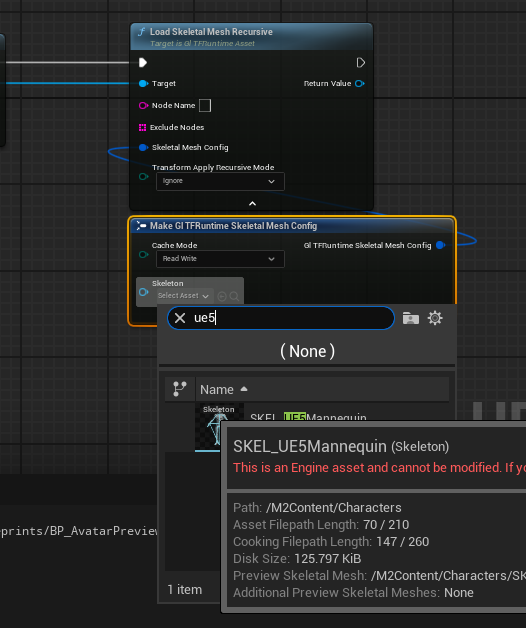
Press the down arrow at the bottom of the `Load Skeletal Mesh Recursive` node and drag out a connection from the `Skeletal Mesh Config` Pin. Scroll to the bottom and select `Make GlTF Runtime Skeletal Mesh Config`
From the `Skeleton` dropdown select `SKEL_UE5Mannequin`
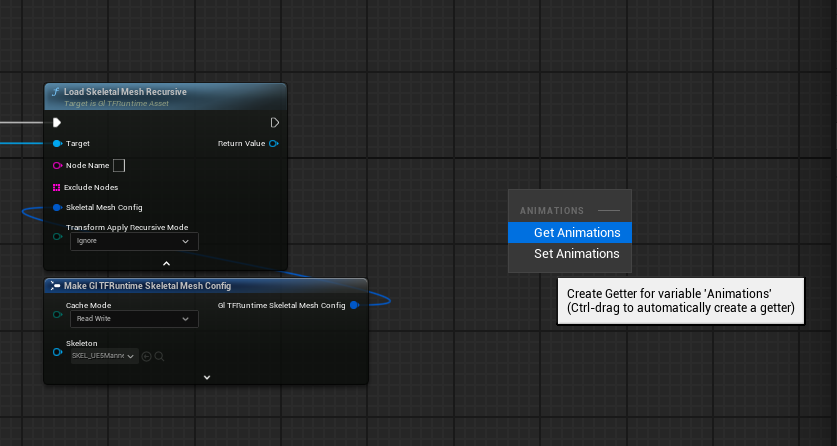
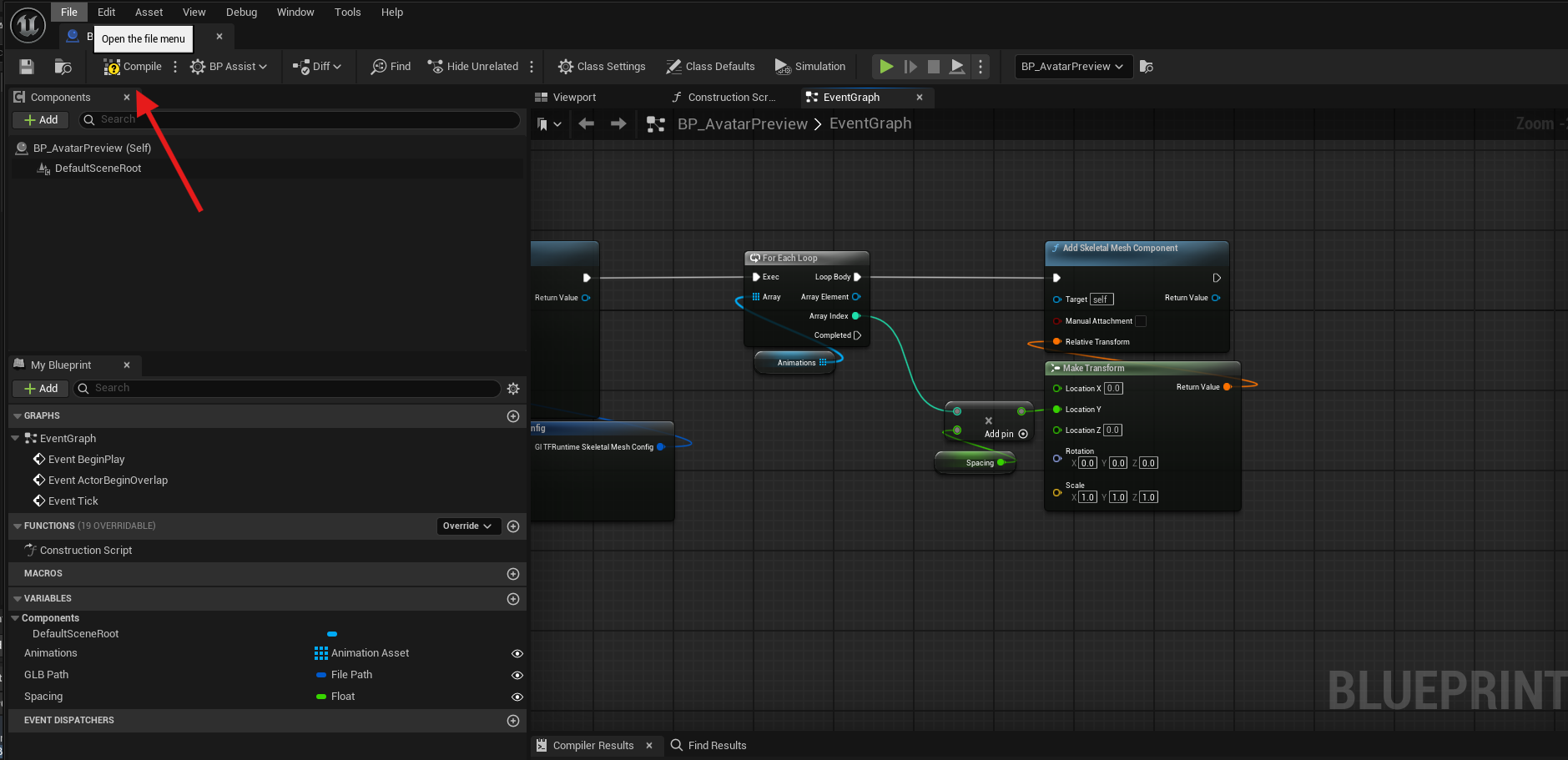
From the Variables panel drag `Animations` out to the Event Graph and select `Get Animations`.
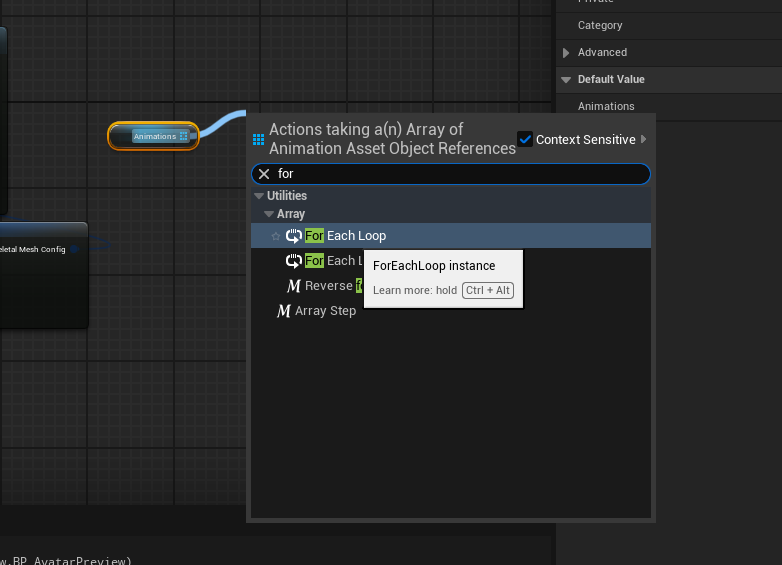
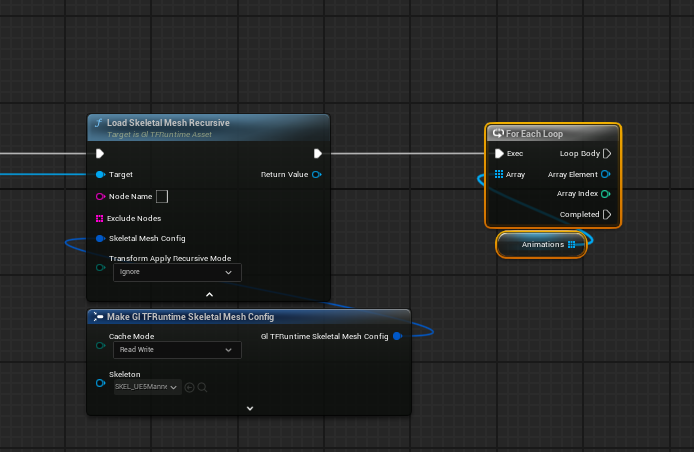
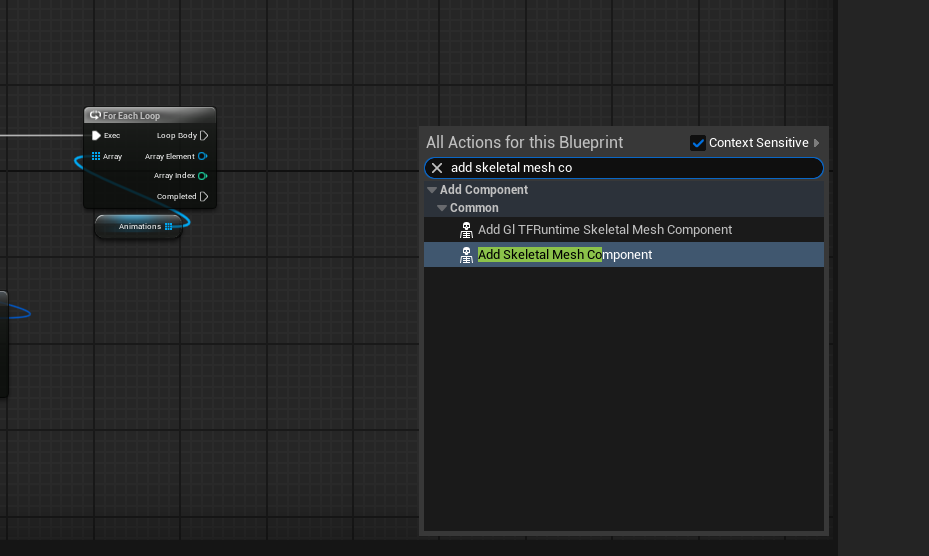
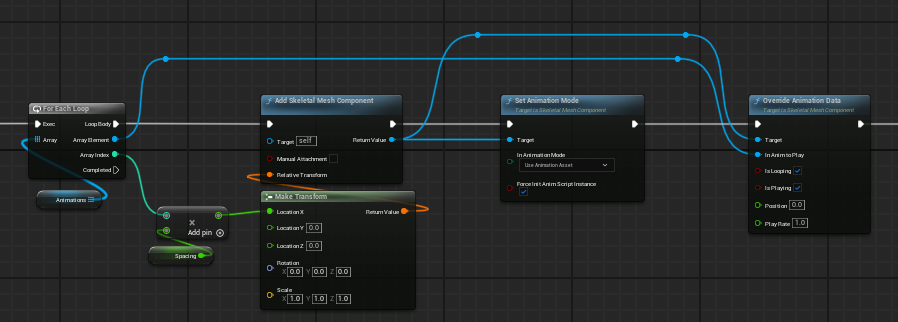
From the Pin on `Animations` pull off a connection and then select `For Each Loop`.
Connect the Exec pin from load skeletal mesh to the For Loop.
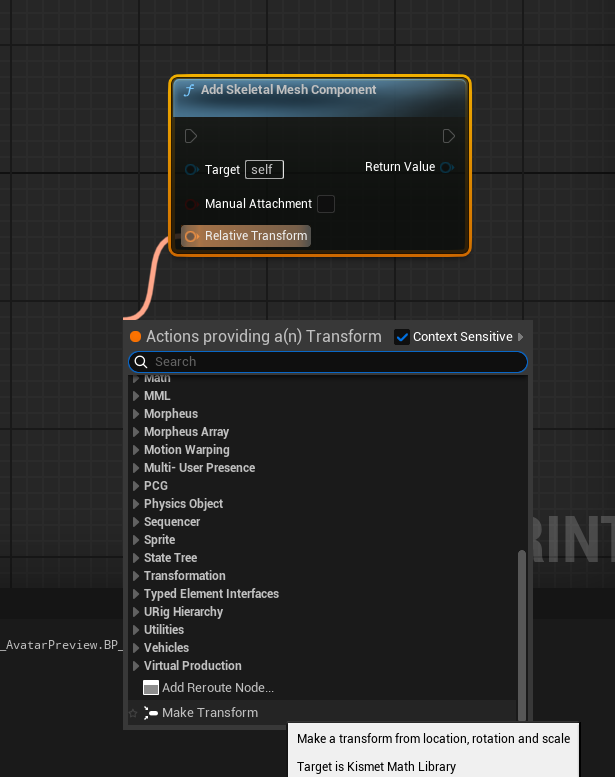
Add an `Add Skeletal Mesh Component` Node
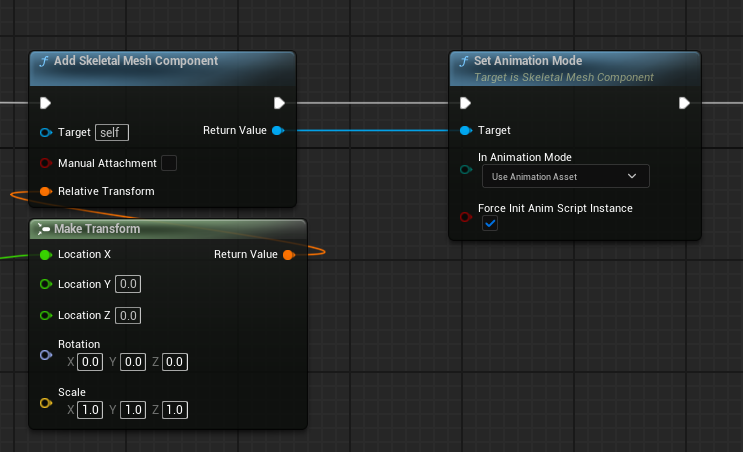
Pull a connection off of the `Relative Transform` Pin and select `Make Transform`
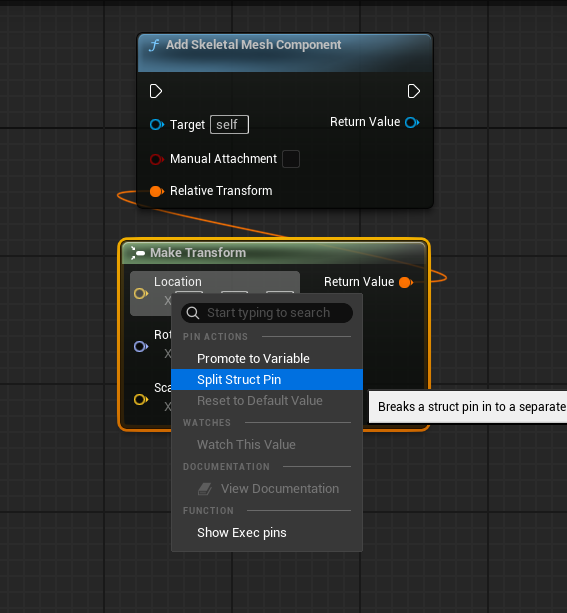
Split the `Location` Struct Pin
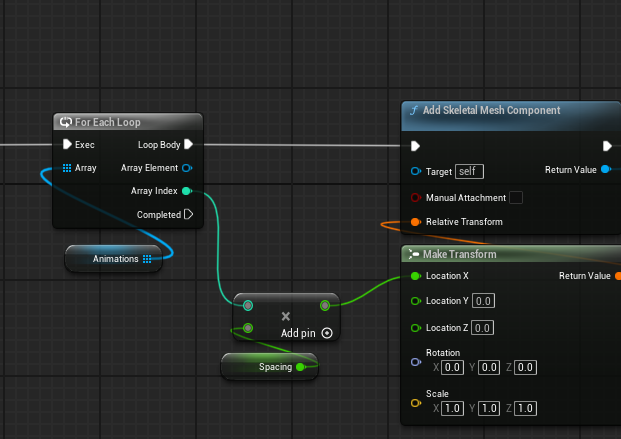
Next we are going to multiply the `Spacing` variable by the `Array Index` from our Loop node. We can also connect the `Loop Body` Pin o the Loop node to the Exec Pin of the `Add Skeletal Mesh Component`.
If you haven't Compiled the blueprint yet we can do that now and then set a default value of 200.0 for our `Spacing`
On our Skeletal Mesh Component, pull out a connection from the `Return Value` of the `Add Skeletal Mesh Component` node and select \`Set Animation Mode.
In the dropdown for `In Animation Mode` set it to `Use Animation Asset`
Also pulling from the `Return Value` of the `Add Skeletal Mesh Component` node add an `Override Animation Data` node, connecting the `In Anim to Play` to the `Array Element` of the for loop.
Again pulling a connection from the `Add Skeletal Mesh Component` node add a `Set Skeletal Mesh Asset` with the `New Mesh` Pin connected to the `Return Value` of `Load Skeletal Mesh Recursive`.
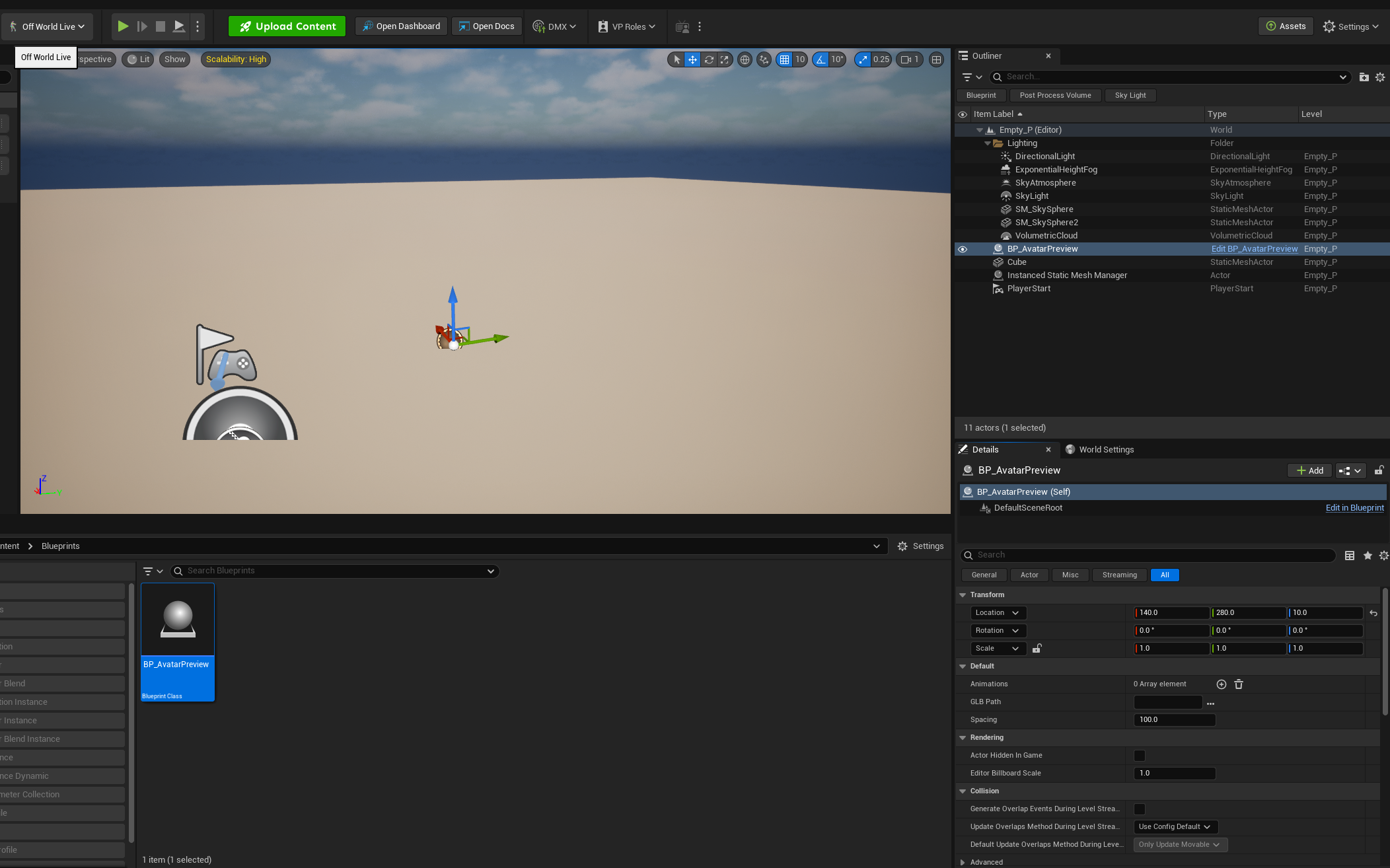
Back in our main level editor window, drag and drop the `BP_AvatarPreview` into the level.
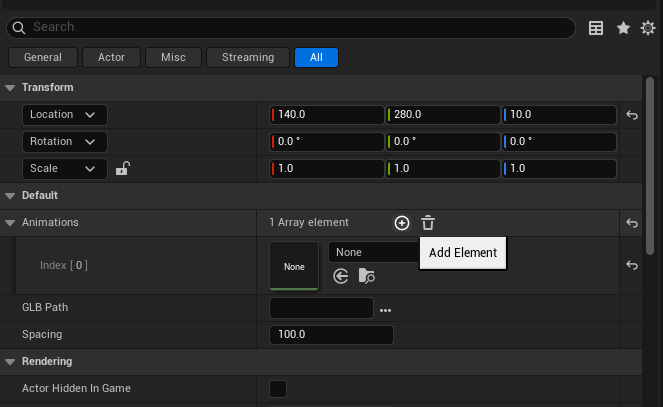
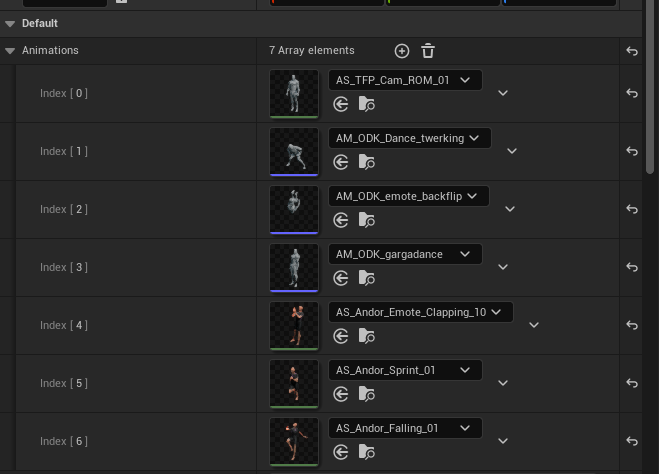
In the details panel in the bottom right of the screen we can an animation by pressing the `+` Next to the `Animations` label.
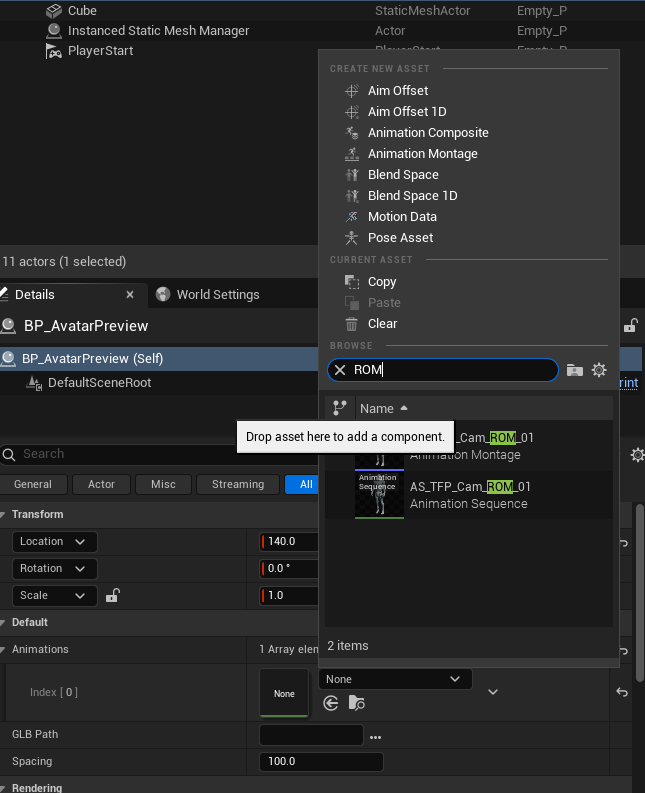
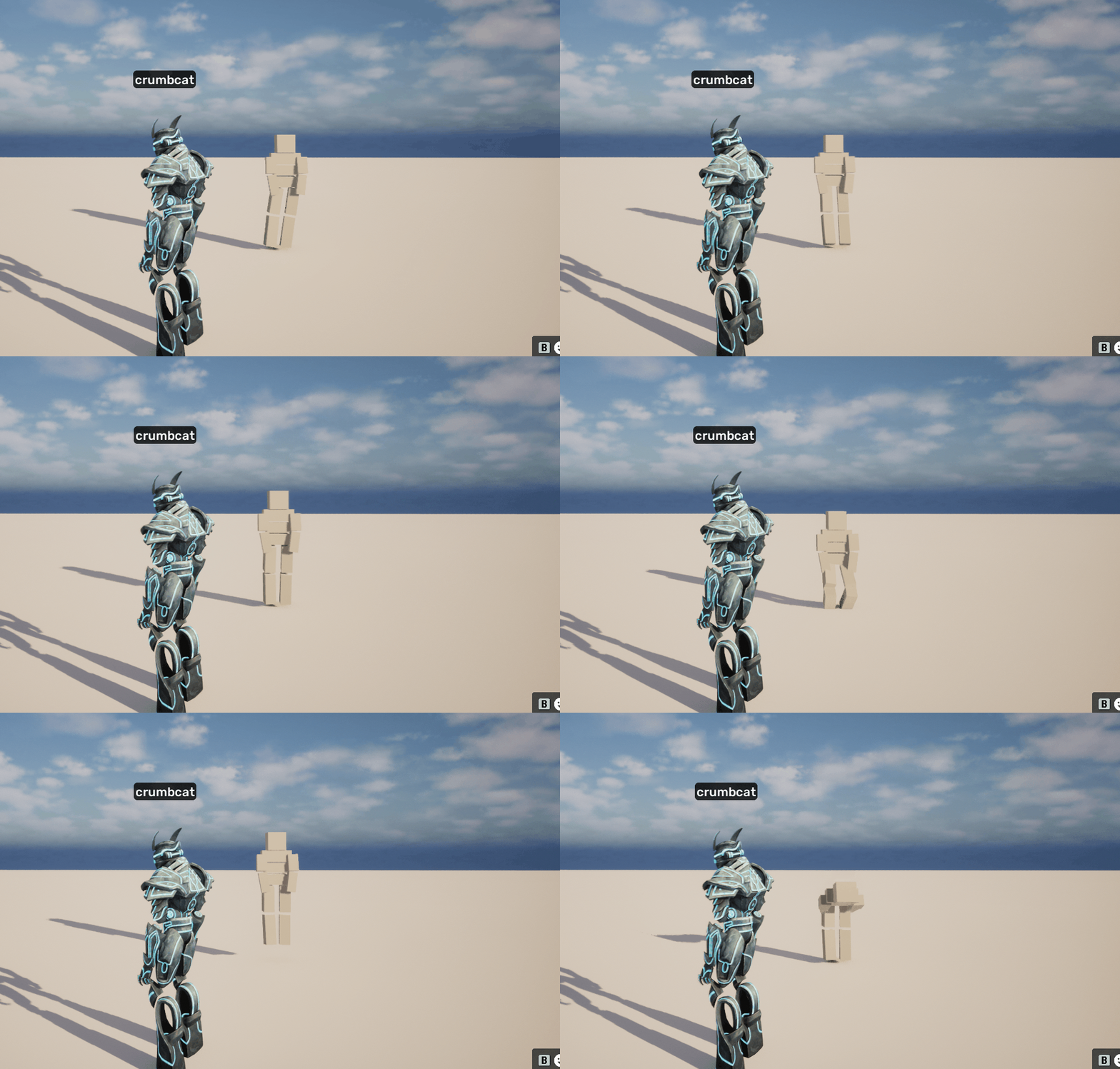
For our first test animation I am just going to add a Range of Motion or ROM animation sequence.
Next we can click on the three dots next to the GLB Path field to select the GLB we downloaded from the avatar web tool.
Once that has been entered press the green arrow at the top of the level editor to preview.
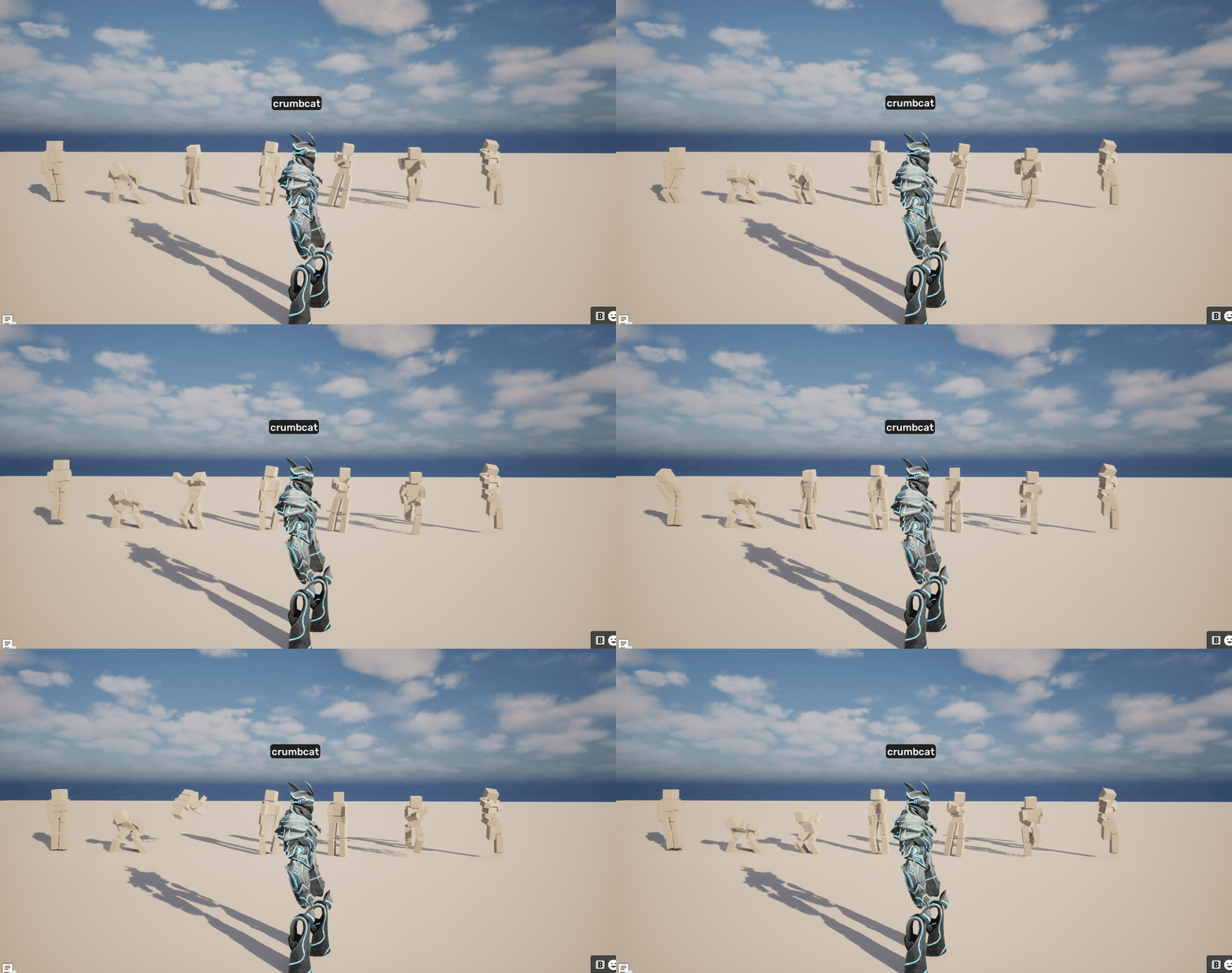
We can add more animations to the the `Animations` list to be able to preview many animations at once. Using emotes is a good way to test extreme poses.
We have successfully brought a character the whole way from nothing to a properly scaled working avatar for the Otherside. Now as we make small tweaks we can quickly see them represented in our test scene by replacing the file that the test scene is referencing.
---
# Agent Instructions
This documentation is published with GitBook. GitBook is the documentation platform designed so that both humans and AI agents can read, navigate, and reason over technical content effectively. Learn more at gitbook.com.
## Querying This Documentation
If you need additional information that is not directly available in this page, you can query the documentation dynamically by asking a question.
Perform an HTTP GET request on the current page URL with the `ask` query parameter, and the optional `goal` query parameter:
```
GET https://docs.otherside.xyz/odk-docs/characters/creating-a-custom-character/creating-a-simple-avatar-collection/further-testing.md?ask=&goal=
```
`ask` is the immediate question: it should be specific, self-contained, and written in natural language.
`goal` is optional and describes the broader end goal you are ultimately trying to accomplish on behalf of the user. GitBook uses it to tailor the answer towards what is most useful for that goal.
The response will contain a direct answer to the question and relevant excerpts and sources from the documentation.
Use this mechanism when the answer is not explicitly present in the current page, you need clarification or additional context, or you want to retrieve related documentation sections.