> For the complete documentation index, see [llms.txt](https://docs.otherside.xyz/llms.txt). Markdown versions of documentation pages are available by appending `.md` to page URLs; this page is available as [Markdown](https://docs.otherside.xyz/odk-docs/odk-plugin/odk-koda-cam/scannable-objects.md).
# Scannable Objects
## BPC\_ScannableComponent 📸🔍
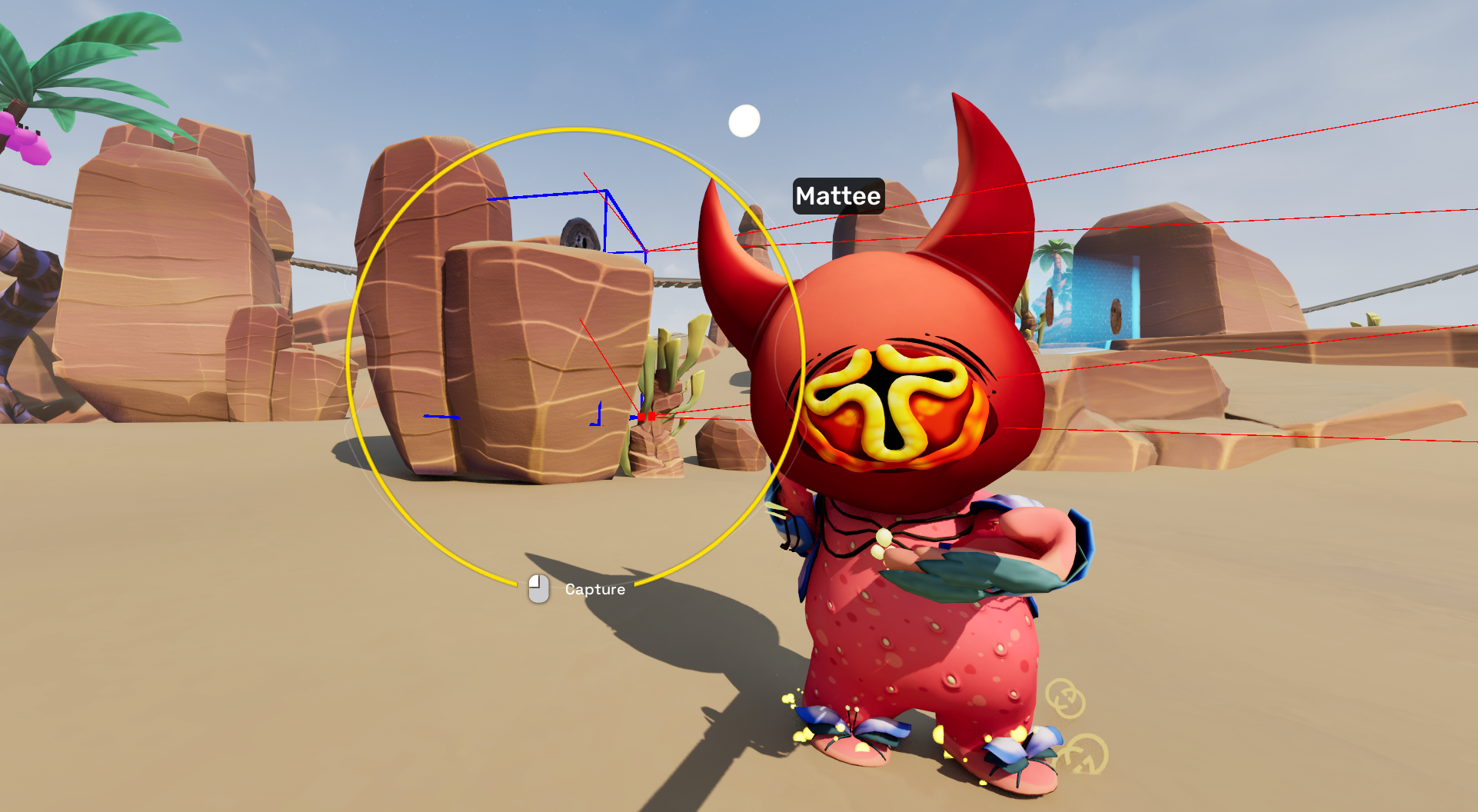
The `BPC_ScannableComponent` component extends the Selfie Cam system by allowing specific actors in the world to be "scanned" whenever a screenshot is taken. This makes it possible to tag screenshots with contextual metadata about visible objects — such as quest items, characters, or interactables.
***
### System Overview 🛠️
When the `BPC_ScannableComponent` component is attached to an actor, the Selfie Cam performs the following checks:
1. **Bounding Box Generation 📦**
* The component collects the actor’s visible primitives (Static Mesh Components, Skeletal Mesh Components, etc.).
* A **bounding box** is created around these primitives.
* The system samples points across this bounding box (center, corners, etc.) to use for visibility testing.
2. **Camera Frustum Test 🎥**
* The bounding points are projected into screen space.
* If the required number of points are inside the active **camera frustum**, the actor is considered visible.
* By default:
* **Scan Range** = `1000 units`
* **Required Points** = `1` (i.e. only one point needs to be inside the camera view).
3. **Optional Line Trace Validation 🎯**
* If **Line Trace Bounding Points** is enabled, each point is validated with a line trace:
* The trace runs from the camera position to the bounding point.
* If the line is blocked, the point is considered occluded.
* You can:
* Ignore specific **actors** using a tag.
* Ignore specific **component classes** under `Advanced > Component Classes to Ignore` (defaults include Niagara systems, Groom components, widgets, nameplates, and others).
If an actor passes all checks, it is marked as **scanned** for that screenshot.
***
### Metadata Inclusion 🗂️
Once an actor has been successfully scanned:
* Its metadata is attached to the screenshot payload.
* This data is passed to the **On Screenshot Taken** delegate on the Player Character’s `BPC_ODK_ScreenshotComponent`.
* Example flow:
* Player presses **IA\_ODK\_KodaCam\_TakeSnapshot**.
* Screenshot is saved locally and minted.
* Delegate fires → returns metadata including any scannable actors in view.
***
### Customization ⚙️
The **BPC\_Scannable** component exposes several options for tailoring how actors are scanned and represented:
#### Scan Parameters
* **Scan Range** (`float`) → Maximum detection distance from the camera (default: `1000`).
* **Required Points** (`int`) → Number of bounding box points that must be inside the frustum (default: `1`).
* **Line Trace Bounding Points** (`bool`) → Enables occlusion checks for more accurate results.
#### Metadata
* **Friendly Name** (`FString`, Exposed Variable)
* If set, this is included in the screenshot’s metadata JSON.
* If not set, a fallback name is auto-generated from the actor’s name.
* **GetScanInfo Override** 🔧
* Developers can subclass `BPC_ScannableComponent` and override the `GetScanInfo` function.
* This allows returning a custom JSON object with arbitrary fields.
* Example: rarity, quest state, or any game-specific attributes.
#### Bounds Modifiers
* **Origin Modifier** (`FVector`) → Shifts the generated bounds center.
* **Extent Modifier** (`FVector`) → Expands or shrinks the generated bounds extents.
* Useful for fine-tuning where an actor’s scannable area is relative to its meshes.
***
### Example Workflow 🚀
1. **Setup**
* Attach `BPC_ScannableComponent` to any actor you want to be detectable in Selfie Cam mode.
2. **Configure**
* Adjust `Scan Range` and `Required Points` to match how “strict” the scanning should be.
* Enable **Line Trace Bounding Points** if you need occlusion accuracy (e.g. actors behind walls shouldn’t be detected).
3. **Take Screenshot**
* Player enters Selfie Mode (`IA_ODK_KodaCam_Toggle`).
* Camera checks for nearby scannable actors.
* If visible, bounding box points pass frustum/trace tests → actor metadata is collected.
4. **Handle Metadata**
* When the screenshot is taken, the `On Screenshot Taken` delegate on `BPC_ODK_ScreenshotComponent` fires.
* This delegate returns:
* The screenshot image data.
* Any attached metadata from scannable actors.
***
👉 With this system in place, screenshots taken by players don’t just capture visuals — they also capture **contextual metadata** about the world, making them perfect for collectibles, quests, or social sharing features.
---
# Agent Instructions
This documentation is published with GitBook. GitBook is the documentation platform designed so that both humans and AI agents can read, navigate, and reason over technical content effectively. Learn more at gitbook.com.
## Querying This Documentation
If you need additional information that is not directly available in this page, you can query the documentation dynamically by asking a question.
Perform an HTTP GET request on the current page URL with the `ask` query parameter, and the optional `goal` query parameter:
```
GET https://docs.otherside.xyz/odk-docs/odk-plugin/odk-koda-cam/scannable-objects.md?ask=&goal=
```
`ask` is the immediate question: it should be specific, self-contained, and written in natural language.
`goal` is optional and describes the broader end goal you are ultimately trying to accomplish on behalf of the user. GitBook uses it to tailor the answer towards what is most useful for that goal.
The response will contain a direct answer to the question and relevant excerpts and sources from the documentation.
Use this mechanism when the answer is not explicitly present in the current page, you need clarification or additional context, or you want to retrieve related documentation sections.