> For the complete documentation index, see [llms.txt](https://docs.otherside.xyz/llms.txt). Markdown versions of documentation pages are available by appending `.md` to page URLs; this page is available as [Markdown](https://docs.otherside.xyz/platform-documentation/creation/unreal-development/features-and-tutorials/video-players/millicast-video-streaming/how-to-set-up-an-in-game-video-stream.md).
# How to Setup an In-Game Video Stream
## Overview
This guide starts with the template project and ends with having a running video feed in-game.
You could use this for playing an in-world video, screen sharing, webcam feed, etc.
The simplest way to achieve this is using our Millicast integration. Millicast is a 3rd party developer platform (acquired by Dolby) that provides ultra-low-latency video streaming capabilities that scale to massive audiences.
For more information, see the reference page on [Millicast video streaming](/platform-documentation/creation/unreal-development/features-and-tutorials/video-players/millicast-video-streaming.md)
## Steps
1. Open your Unreal project
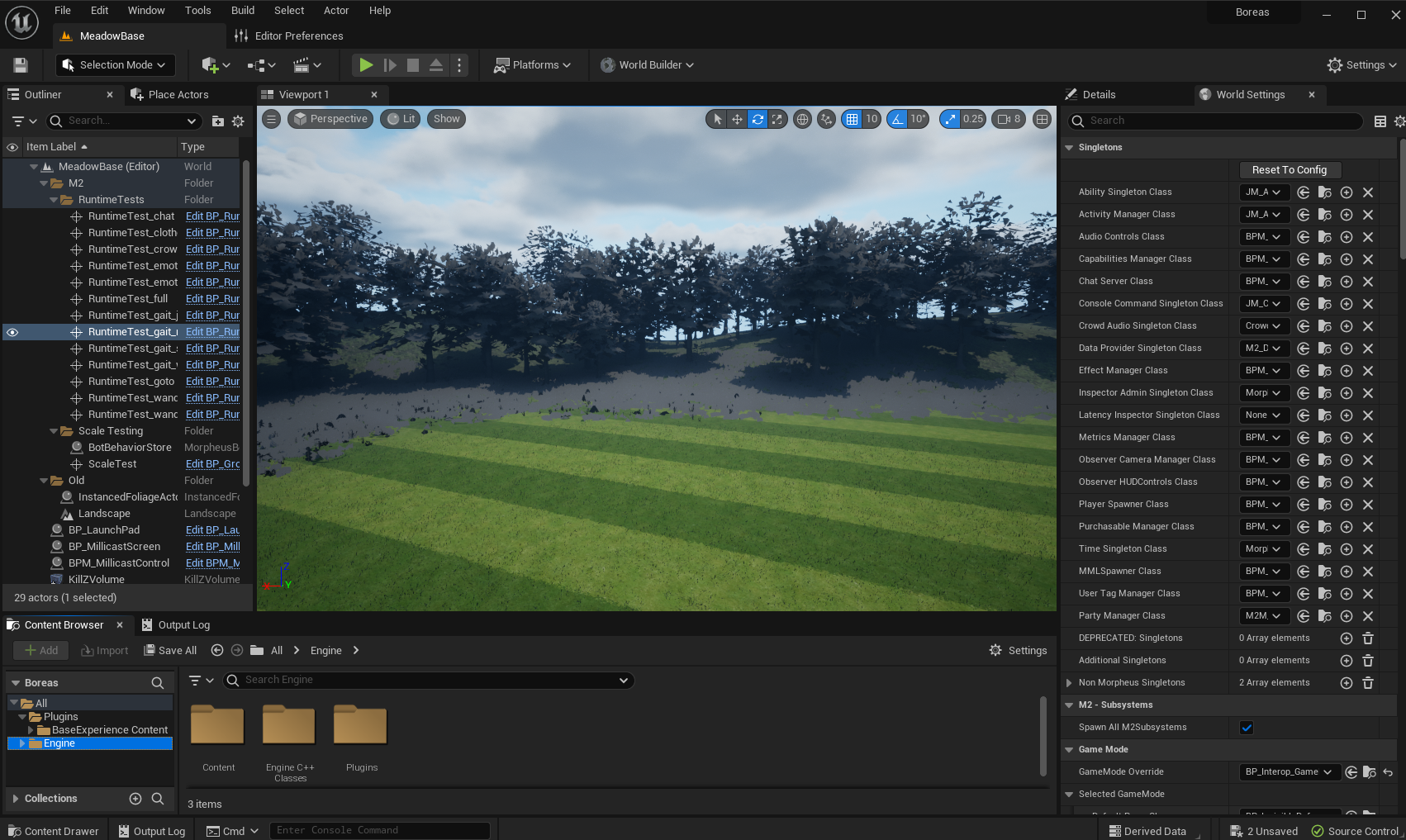
2. Drag the 3 required Millicast assets into your level\
\

\
You can find the following via the Place Actors panel:\
\
(NOTE - Be careful not to place the `M2_` prefixed equivalents of the Screen or Control assets)
* `BP_MillicastScreen`
* this is the actual screen displaying the video feed
* you can have as many of these as you want
* `BPM_MillicastControl`
* this is used to configure your Millicast stream information
* you only need one of these
* `M2 Millicast Channel`
* this is used as plumbing between the stream video/audio received from Millicast and the audio bus & video texture used in the client
* you would add extra channels if you wanted different video stream feeds playing at the same time
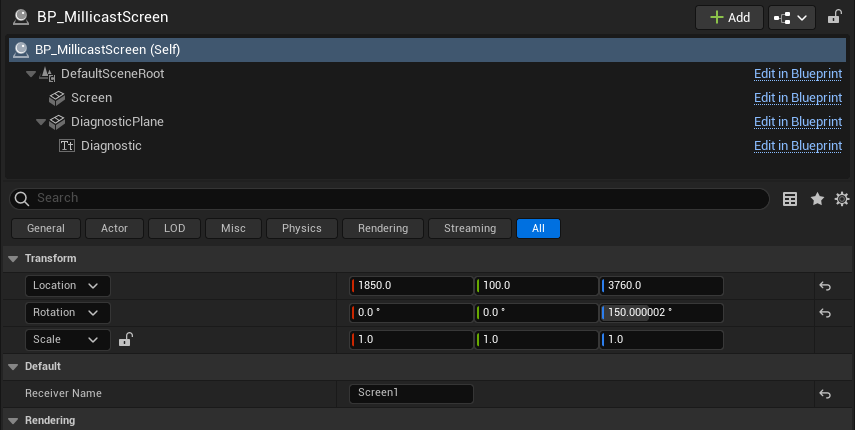
3. Name your `BP_MillicastScreen` asset(s)\
\
Select your screen asset(s) in the World Outliner and, in the *Details* panel, give each a unique `Receiver Name`\\
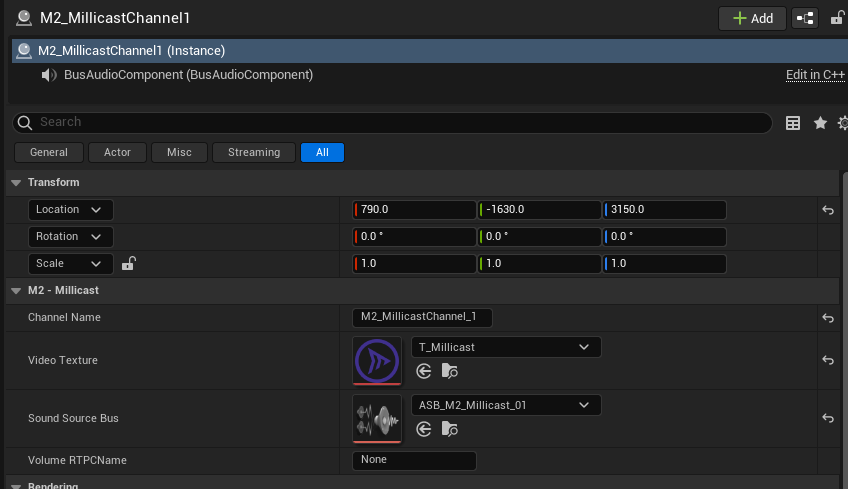
4. Select your MillicastChannel asset(s) and, in the *Details* panel, select a unique `Video Texture` + `Sound Source Bus` pair for each channel\
\
For example, your first channel should be set to have\\
\
If you were to add a second channel, you should use `T_Millicast2` and `ASB_M2_Millicast_02` for the `Video Texture` and `Sound Source Bus` respectively\
\\
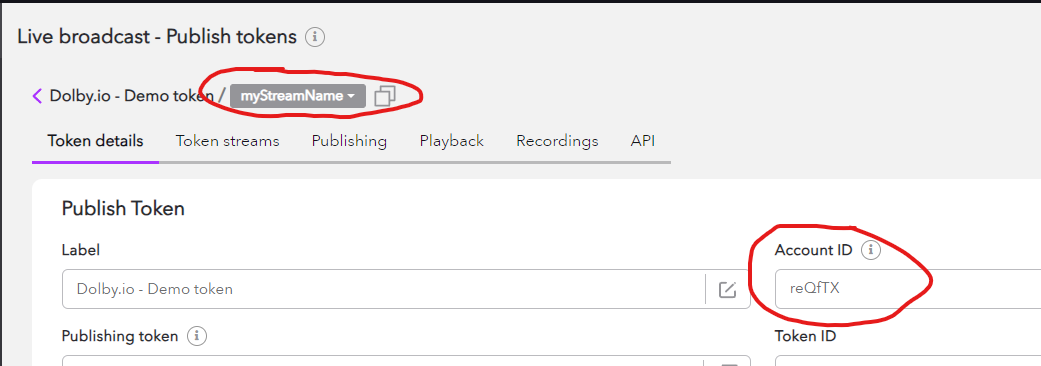
5. Retrieve Millicast stream name and account ID to use\
\
If you don’t have an account, you can quickly sign up for free (at the time of writing)
1. Go to [Sign In](https://dashboard.dolby.io/)
2. Create an account using OAuth credentials (and click through the account creation dialogue)
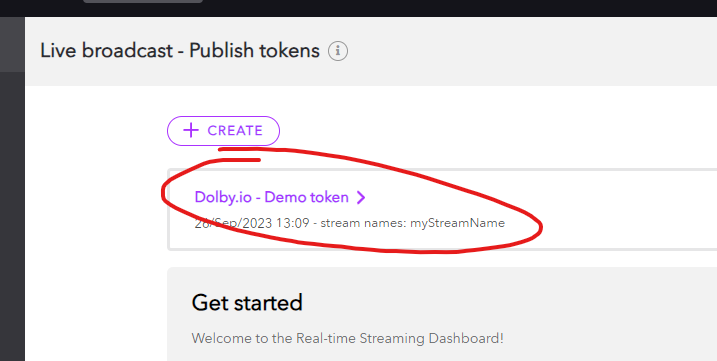
3. Click on the default stream that is created for you\\
4. Identify your stream name and account ID, e.g. `myStreamName` and `reQfTX` respectively below
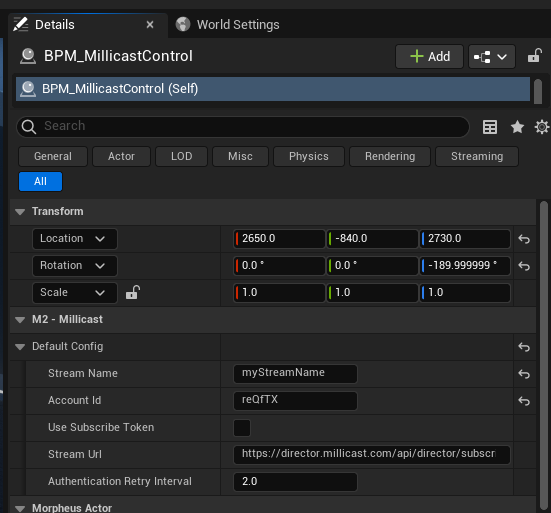
6. Add your Millicast stream name and account ID for your Millicast control\
\
Select your control asset in the World Outliner and, in the *Details* panel, configure these settings, e.g.
7. Give your the required in-game role to be able to change Millicast settings\\
\
In the *World Settings* panel:
1. search for “roles”
2. expand the `Default Role` setting
3. set the `Row Name` to `Director`\\
8. Start a stream from your Millicast (Dolby streaming) account\
\
In practice, you might want to follow [this guide](https://docs.dolby.io/streaming-apis/docs/using-obs#webrtc-with-obs) to stream from OBS\
\
Initially, the easiest way to stream is via the web UI which uses a webcam feed\\
1. From the [Dashboard](https://streaming.dolby.io/) page:
2. Click on the BROADCAST button\\
\\
3. Open the Media Settings via the cog icon in the bottom-right of the stream
\
\\
4. Toggle the codec to VP8 or VP9
\
NOTE - If it's already set to VP8 or VP9 by default, change it once to the other one - this is to work around a known bug in Dolby's system\
\

5. Click **Update**\\
6. Click the **Start** button\
\
\\
9. Click the Play button in the unreal editor\\
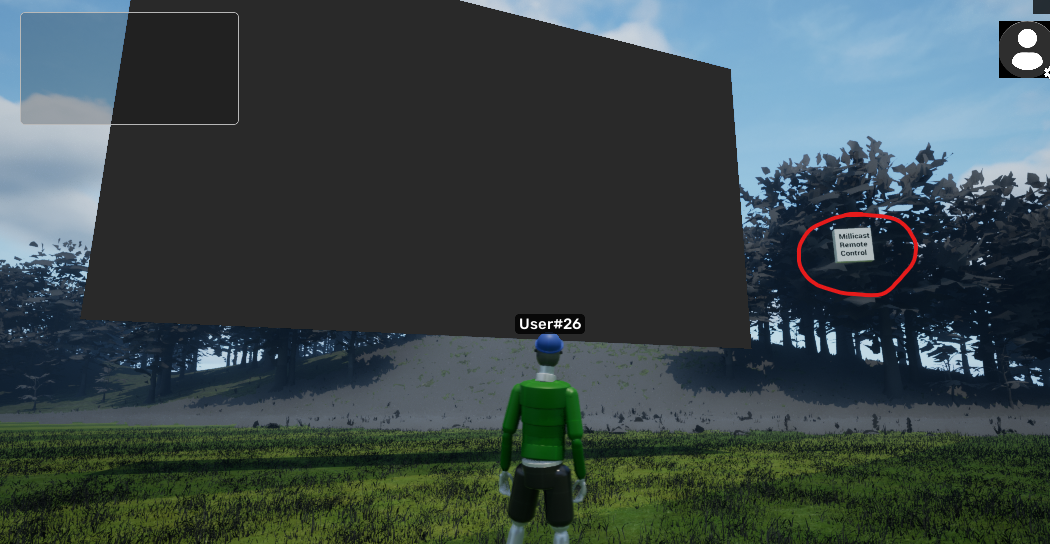
10. Once in-game, open the Millicast Control panel
\
To do this, right-click to bring up your cursor, then left-click the Millicast Remote Control icon\\
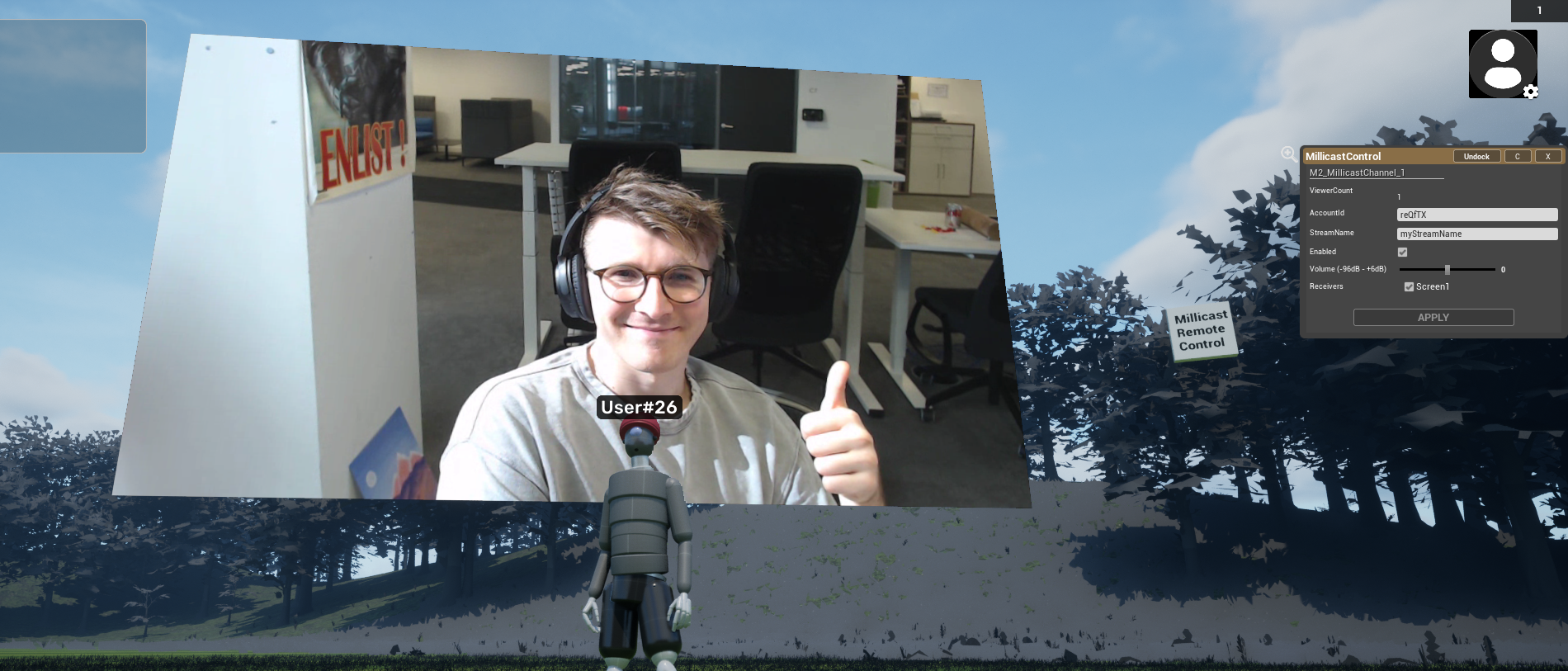
11. In the Millicast Control panel, ensure the `Enabled` and `Receivers` boxes are ticked, then click `Apply`\
\

12. Your Millicast screen should now display the feed from your stream\\
For more information, see the reference page on [Millicast video streaming](/platform-documentation/creation/unreal-development/features-and-tutorials/video-players/millicast-video-streaming.md)
For desktop streaming, you can follow [this guide](https://docs.dolby.io/streaming-apis/docs/using-obs#webrtc-with-obs) to stream to Millicast from OBS
---
# Agent Instructions
This documentation is published with GitBook. GitBook is the documentation platform designed so that both humans and AI agents can read, navigate, and reason over technical content effectively. Learn more at gitbook.com.
## Querying This Documentation
If you need additional information that is not directly available in this page, you can query the documentation dynamically by asking a question.
Perform an HTTP GET request on the current page URL with the `ask` query parameter, and the optional `goal` query parameter:
```
GET https://docs.otherside.xyz/platform-documentation/creation/unreal-development/features-and-tutorials/video-players/millicast-video-streaming/how-to-set-up-an-in-game-video-stream.md?ask=&goal=
```
`ask` is the immediate question: it should be specific, self-contained, and written in natural language.
`goal` is optional and describes the broader end goal you are ultimately trying to accomplish on behalf of the user. GitBook uses it to tailor the answer towards what is most useful for that goal.
The response will contain a direct answer to the question and relevant excerpts and sources from the documentation.
Use this mechanism when the answer is not explicitly present in the current page, you need clarification or additional context, or you want to retrieve related documentation sections.