# Download the Editor

## System Requirements <a href="#system-requirements" id="system-requirements"></a>

Currently, the Morpheus Platform editor only supports Windows 10 and 11.

## Hardware Requirements

Our editor is built on Unreal Editor, and has the same [hardware and software requirements](https://dev.epicgames.com/documentation/en-us/unreal-engine/hardware-and-software-specifications-for-unreal-engine).

{% hint style="info" %}
The exact hardware necessary will depend on the scale of your project.
{% endhint %}

## Prerequisites

* If you haven't installed Unreal before, you might need Microsoft's [Visual C++ Redistributable](https://aka.ms/vs/17/release/vc_redist.x64.exe).
* You need to have been given `Developer` access to your metaverse - see [Access Control](/platform-documentation/admins/access-control.md).

## Steps

From your [dashboard](/platform-documentation/morpheus-platform/glossary.md#dashboard), click the **`⬇ Download the editor`** button.

In the modal dialog that appears, first click the **`⬇ Install the Launcher`** button.

<figure><img src="/files/T2xEFtxaJBc4CZqLkFS1" alt=""><figcaption><p>Note: Your <a href="/pages/2XcNNmRWXjvAM4mmvOvX#projects">project</a> probably won't be called Staging. If you're not sure which project's editor to download, speak to your colleagues.</p></figcaption></figure>

{% hint style="info" %}
M² Launcher is our thin desktop app for Unreal editor & client downloading. It caches downloads so that subsequent launches happen fast.

i.e. The second time you click ⬇ **`Download`** for the same editor or client version, it should run immediately.
{% endhint %}

{% hint style="warning" %}
To change the editor download location (e.g. drive) - see the [M2 Launcher](/platform-documentation/apis-and-tooling/launcher.md) page.
{% endhint %}

After installing the launcher, click the bigger ⬇ **`Download`** button to get the editor.

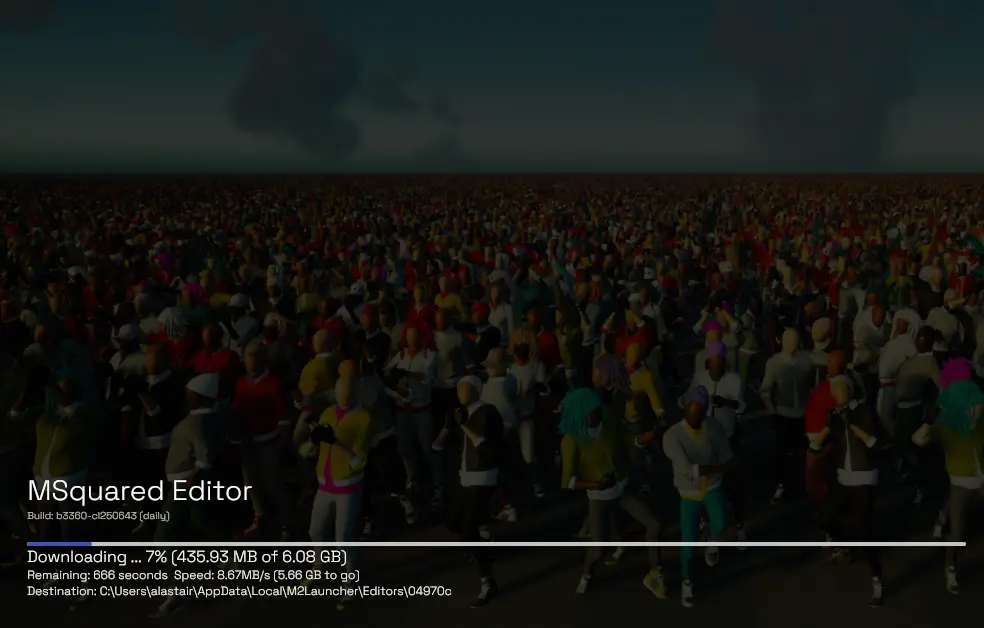
The launcher should automatically appear and start the editor download.

<figure><img src="/files/7O4bNWgbTRA6RZLfISLD" alt=""><figcaption><p>Downloading an editor</p></figcaption></figure>

Once the download finishes, it should automatically open the Unreal Engine project modal.

If it doesn't, you can click the ⬇ **`Download editor`** button in the dashboard again, and now the launcher will immediately open Unreal.

To create a new project:

* Click the `MSquared` tab
* Configure the Project Location and Project Name as you like
* Click the `Create` button

{% hint style="info" %}
For further details on how to use the template project, see [Morpheus Base Project](/platform-documentation/creation/unreal-development/getting-started/using-the-template-project.md)
{% endhint %}

<figure><img src="/files/iIrsxXjKm1ZTDIO0iuj2" alt=""><figcaption><p>Creating a project</p></figcaption></figure>

Alternatively, you may want to [open an existing project with this editor](/platform-documentation/creation/unreal-development/tutorials/upgrade-the-editor.md).

{% hint style="info" %}
In future, you can open your project just by clicking the `uproject` file in your project folder. You should only need to use the download path when if you need to update the editor version you're using. [More on that later](/platform-documentation/creation/unreal-development/tutorials/upgrade-the-editor.md).
{% endhint %}

## Wait for the Editor to Open

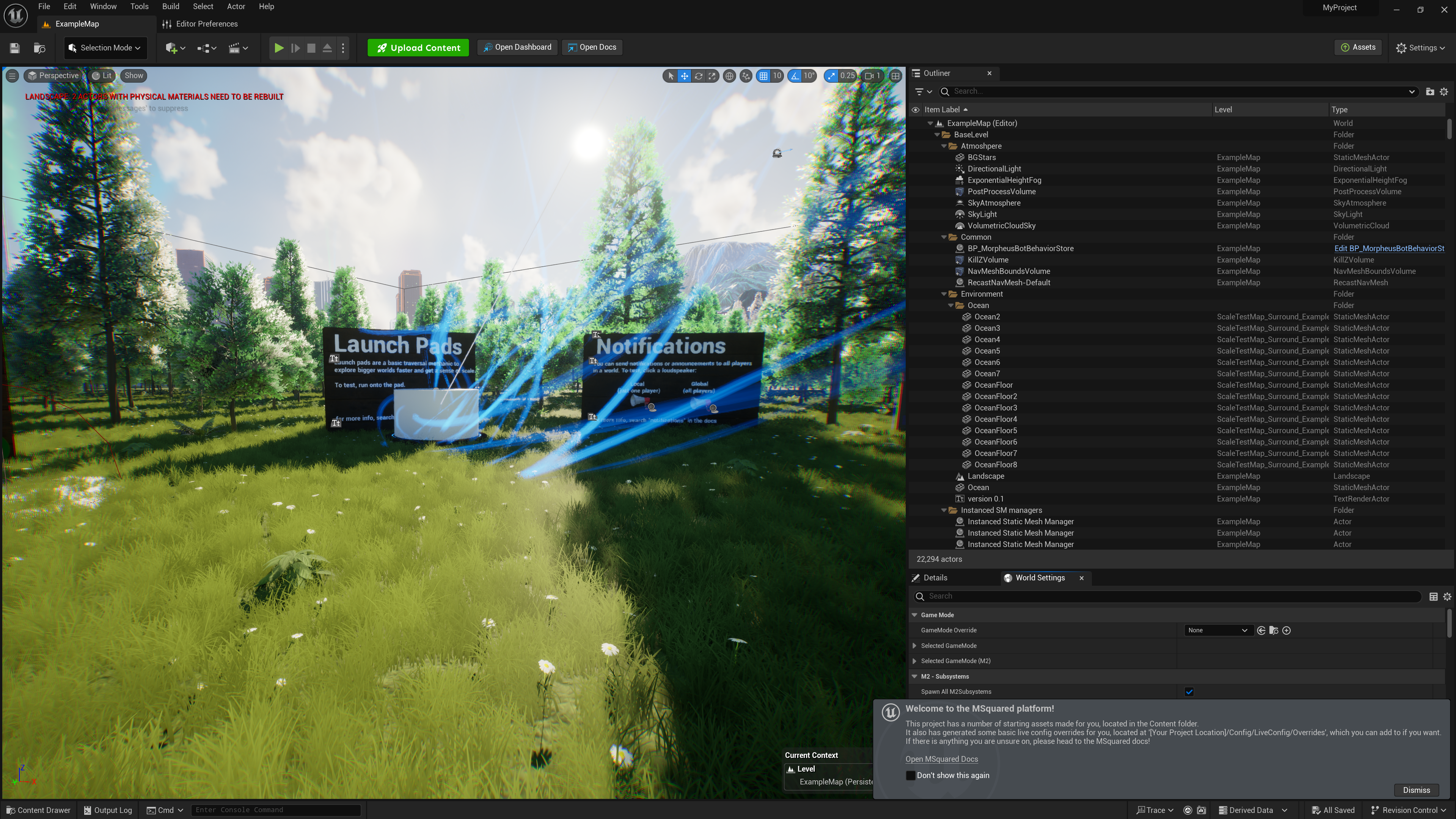
Lastly, wait for the Unreal Editor to open your project.

<figure><img src="/files/F0ulJrC40O3249Pb3Bst" alt=""><figcaption><p>The editor opening a project</p></figcaption></figure>

<figure><img src="/files/ewm4aQi4Hti2kpXtWG60" alt=""><figcaption><p>Your first MSquared project</p></figcaption></figure>

## Known Issues

#### Editor downloads but errors when trying to open

You may need to install the Unreal Engine prerequisites. You can do this by:

1. Navigating to`%LocalAppdata%/M2Launcher/Editors`
2. Sort this directory by Date modified and open the most recently modified directory (this is the Editor that you most recently downloaded).
3. From here, navigate to`Windows/Engine/Extras/Redist/en-us`
4. and run the `UEPrereqSetup_x64.exe` file.


---

# Agent Instructions: Querying This Documentation

If you need additional information that is not directly available in this page, you can query the documentation dynamically by asking a question.

Perform an HTTP GET request on the current page URL with the `ask` query parameter:

```
GET https://docs.otherside.xyz/platform-documentation/creation/unreal-development/getting-started/downloading-the-tooling.md?ask=<question>
```

The question should be specific, self-contained, and written in natural language.
The response will contain a direct answer to the question and relevant excerpts and sources from the documentation.

Use this mechanism when the answer is not explicitly present in the current page, you need clarification or additional context, or you want to retrieve related documentation sections.