> For the complete documentation index, see [llms.txt](https://docs.otherside.xyz/llms.txt). Markdown versions of documentation pages are available by appending `.md` to page URLs; this page is available as [Markdown](https://docs.otherside.xyz/platform-documentation/creation/unreal-development/tutorials/reference/connecting-editor-clients-to-a-live-world.md).
# Connect Editor to a World
## Requirements
* All the World Builder content used in the packaged client/server must be available in the editor, as the editor cannot download uploaded World Builder content.
* Start the editor in the level you want to play in. We don’t currently have ways of checking you’re in the correct level.
* You’ll need to know where your editor executable is located. This can sometimes be difficult, but the simplest way is to
* Launch the desired editor via M2Launcher.
* Navigate to `%localappdata%/M2Launcher/Logs` and open the most recent log file.
* At the end of the file it will display the executable path.
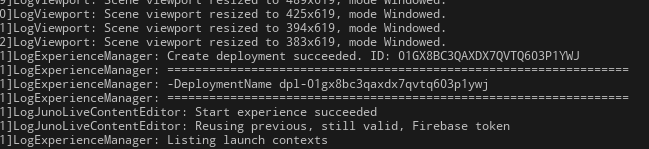
* You’ll need the deployment name to hand, which can be found in the “Output Log” after creating an experience using the UI:
## Via PIE
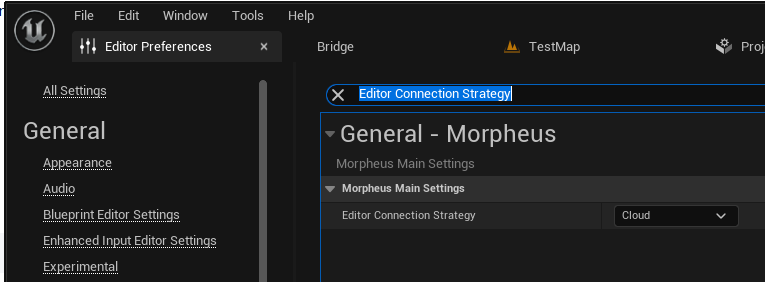
Navigate to “Editor Preferences” and search for “Editor Connection Strategy”, then change to “Cloud”.
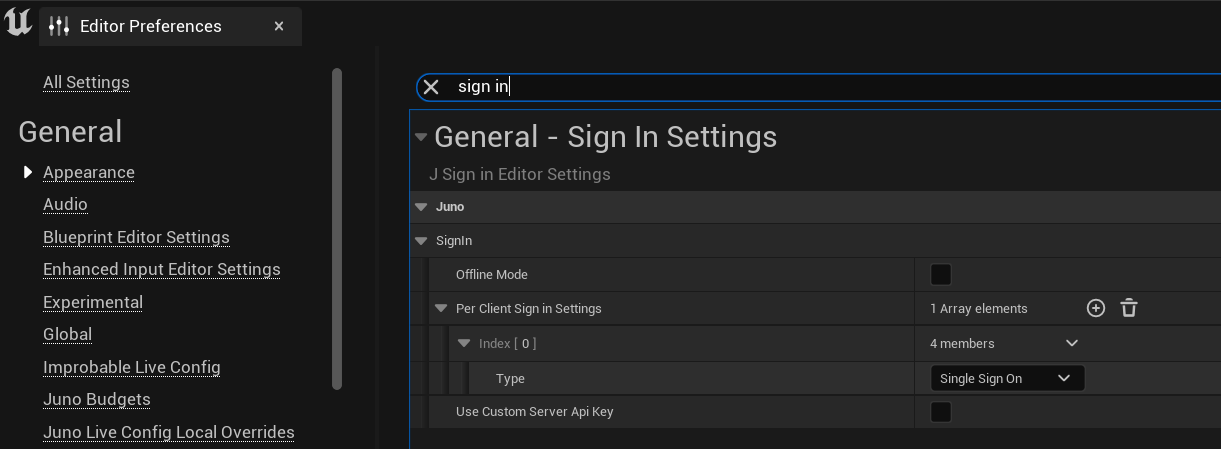
in “Editor Preferences” search for “Sign In”, click the + next to Per Client Sign in Settings and in the newly added array element below set the Type to “Single Sign On”\\
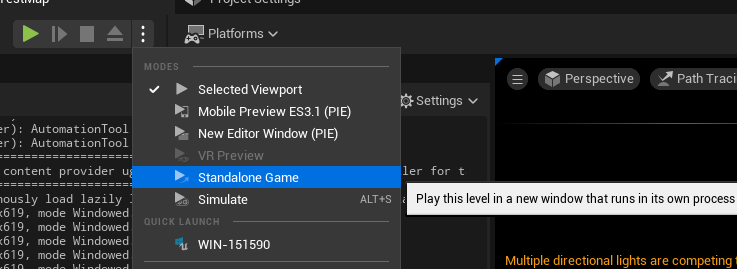
#### Play standalone
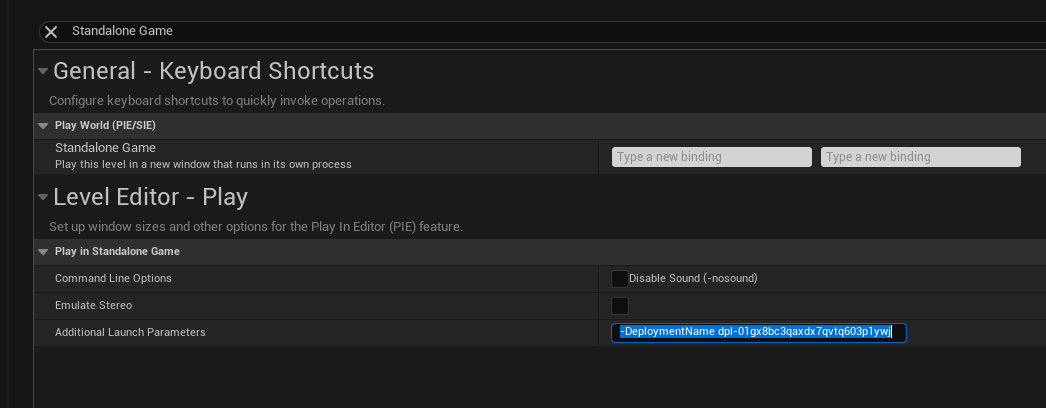
Also in “Editor Preferences”, search for “Standalone Game“ and add `-DeploymentName ` to the “Additional Launch Parameters” text box.
You can then launch using “Standalone Game”.
The first time you do this, you may be prompted with a Single Sign On dialog in another window. If the client pauses at the sign on phase, look for that window elsewhere.
#### Play in viewport
Start the editor via command line with the deployment name specified:
```
/Windows/Engine/Binaries/Win64/UnrealEditor.exe -DeploymentName
```
You can then play in any form of PIE on the cloud server.
## Via Command Line
It’s also possible to connect to a cloud world directly from the command line.
First, make sure the project settings are configured to open your intended map on launch.
You’ll also need to know where the `.uproject` for your project you created is located.
Below is an example command line that will connect to the cloud as editor, without opening any UI in the process:
```
/Windows/Engine/Binaries/Win64/UnrealEditor.exe" "\.uproject" -DeploymentName= -game -Windowed -ResX=1280 -ResY=720
```
---
# Agent Instructions
This documentation is published with GitBook. GitBook is the documentation platform designed so that both humans and AI agents can read, navigate, and reason over technical content effectively. Learn more at gitbook.com.
## Querying This Documentation
If you need additional information that is not directly available in this page, you can query the documentation dynamically by asking a question.
Perform an HTTP GET request on the current page URL with the `ask` query parameter, and the optional `goal` query parameter:
```
GET https://docs.otherside.xyz/platform-documentation/creation/unreal-development/tutorials/reference/connecting-editor-clients-to-a-live-world.md?ask=&goal=
```
`ask` is the immediate question: it should be specific, self-contained, and written in natural language.
`goal` is optional and describes the broader end goal you are ultimately trying to accomplish on behalf of the user. GitBook uses it to tailor the answer towards what is most useful for that goal.
The response will contain a direct answer to the question and relevant excerpts and sources from the documentation.
Use this mechanism when the answer is not explicitly present in the current page, you need clarification or additional context, or you want to retrieve related documentation sections.